Why Your WordPress Website Is Slow: 7 Performance Killers for Small Businesses
By Amir
96 Views
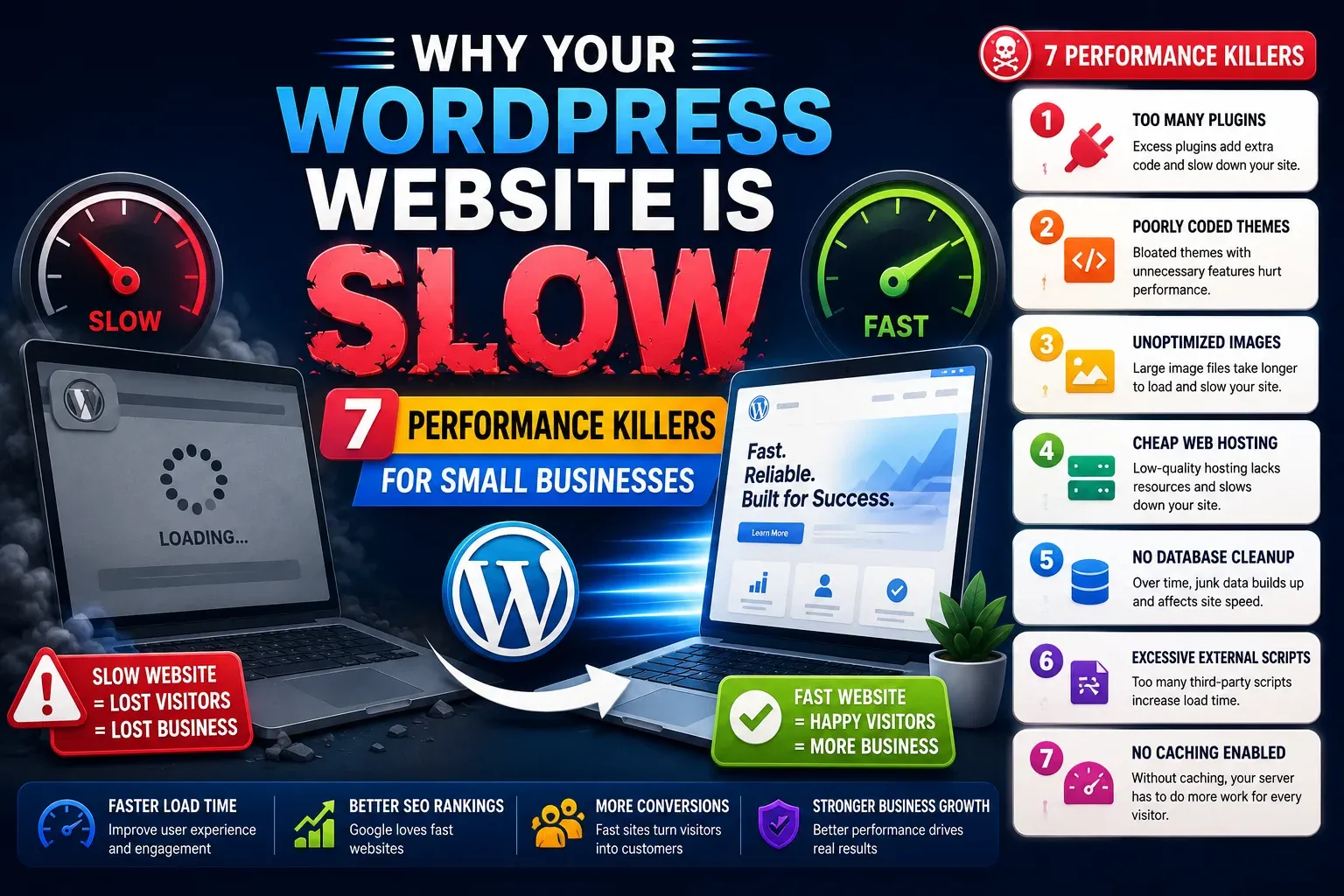
Many small business owners know their WordPress site feels slow but are not sure why. They might see low performance scores or hear complaints from customers about pages taking too long to load, yet the reasons stay hidden behind themes, plugins and hosting setups.
This article explains seven common performance killers that slow down WordPress websites for small businesses and how they affect user experience and local SEO. It also points to a clear next step, because the fixes for these problems are explained in detail in the WordPress Core Web Vitals guide from Clienvora.
Why A Slow WordPress Site Hurts Your Business
A slow WordPress website affects more than load time. It influences:
- How easily customers can browse services and contact you
- How search engines evaluate your site quality and user experience
- How often visitors stay long enough to convert into leads or sales
For small businesses that rely on organic traffic and local visibility, performance becomes a practical lever. Understanding the main causes of slowness makes it easier to improve results without guessing.
1. Bloated Themes And Page Builders
Heavy design frameworks
Many business sites use multipurpose themes or visual page builders to create layouts quickly. These tools can be helpful, but they often ship with:
- Multiple scripts and styles for features you never use
- Complex layout engines that add extra markup
- Animation and effect libraries loaded on every page
All of this adds weight and slows down rendering, especially on mobile.
Impact on performance and Core Web Vitals
Bloated themes and builders can delay Largest Contentful Paint and make interaction feel sluggish. Visitors see blank or partially loaded screens for longer, and the browser has more work to do before the page becomes responsive. This hurts both user experience and performance metrics.
2. Unoptimized Images
Oversized and uncompressed files
Images are a major performance factor for WordPress sites. Common issues include:
- Uploading photos directly from cameras or phones without resizing
- Using large hero images on every page
- Filling galleries with high resolution images meant for print rather than web
These files can be several megabytes each and take a long time to load over typical connections.
Effects on user experience
When images are not optimized:
- Pages feel slow and heavy
- Visitors may scroll before images finish loading
- Layout shifts and blank spaces become more common
For small businesses that rely on visual content, this problem is both frequent and fixable once identified.
3. Too Many Plugins
Plugin overload
WordPress plugins add features, but each one also adds code. Many sites accumulate plugins over time, such as:
- Multiple contact form plugins
- Several SEO or analytics plugins
- Old security, backup or share plugins that are no longer used
- Design and widget plugins installed for single effects
Each plugin can introduce new scripts, database queries or CSS files. Together they become a performance burden.
Conflicts and inefficiencies
Having many plugins increases the chance of:
- Duplicate functionality that loads similar scripts twice
- Conflicts that generate errors or delays
- Hard to trace slowdowns as different plugins interact
Reducing plugins to only those that are necessary improves performance and stability.
4. Weak Or Overloaded Hosting
Shared hosting limitations
Small businesses often start with low cost shared hosting. This can have:
- Limited processing power
- Many sites sharing the same resources
- Slower response times during busy periods
When the server is slow to respond, the website feels slow regardless of optimization efforts at the code level.
Geographic distance and latency
If the hosting server is far from your main audience region, every request takes longer to travel. For local businesses, hosting that is closer to the main customer base often improves performance.
5. No Caching Or Poor Caching Setup
What caching does
Caching stores generated pages and assets so they can be served quickly to visitors without rebuilding everything on each request. Without caching:
- WordPress has to run queries and generate content for every page view
- The server does more work for repeated requests
- Time to first byte and overall load time increase
Common caching problems
Even when a caching plugin is installed, issues can remain:
- Caching is not configured properly
- Cache is not enabled for key pages
- Gzip or Brotli compression is not active
- Browser caching for static assets is missing
These gaps mean you miss out on the main benefits of caching for performance.
6. Render Blocking Scripts And Styles
Assets that delay content display
Render blocking resources are scripts or styles that must be loaded before the browser can show the main content. On many WordPress sites, this includes:
- Large CSS files loaded from themes and builders
- Multiple script files from plugins and tracking tools
- Fonts and icon libraries
If these files are not handled carefully, they can delay the moment when visitors see meaningful content and can interact.
Practical impact on visitors
When render blocking scripts and styles pile up:
- Visitors see blank screens or loading indicators for longer
- Interaction feels laggy
- Core Web Vitals related to paint and interactivity show weaker scores
Reducing, deferring or optimizing these assets is a key performance step.
7. Database And Backend Overhead
Slow queries and clutter
Behind every WordPress site is a database that stores content, settings and plugin data. Over time, it can become cluttered with:
- Old post revisions
- Transient entries left by plugins
- Unused tables from removed plugins
- Logs and data that are no longer needed
Poorly optimized queries and cluttered databases can slow down page generation, especially when traffic grows.
Maintenance and cleanup
Regular maintenance helps keep the backend efficient, such as:
- Cleaning up post revisions and transients
- Removing unused plugin tables
- Optimizing tables to improve query performance
These actions reduce the work required to generate pages and improve response times.
How These Performance Killers Affect Small Business SEO
A slow WordPress site sends weak signals to search engines about user experience. Visitors may bounce before reading content, form submissions can feel slow and pages may struggle to pass Core Web Vitals. Over time, this can:
- Reduce organic traffic
- Lower local search visibility
- Make it harder to turn visitors into leads or customers
An optimized site, on the other hand, provides faster pages, smoother interactions and better performance metrics. This supports both search rankings and user satisfaction.
Connecting Diagnostics To Fixes
Identifying why a WordPress site is slow is only the first step. The next part is fixing the problems in a way that is practical for small business teams.
Clienvora offers content marketing and content writing services that focus on clear explanations and actionable guidance. For small businesses running WordPress, the fixes for these performance killers are laid out in the WordPress Core Web Vitals guide. That resource, titled Core Web Vitals For Beginners Tools Tests And Fixes and available at
https://www.clienvora.com/2026/08/core-web-vitals-for-beginners-tools.html
that explains how to test your site, interpret performance metrics and apply step by step improvements to themes, images, plugins, caching and scripts. It helps you move from diagnostics to solutions using beginner friendly language.
Conclusion
If your WordPress website feels slow, it is usually because of a combination of factors like bloated themes, unoptimized images, too many plugins, weak hosting, missing caching, render blocking assets or database clutter. Each one adds friction for visitors and makes it harder for search engines to see your site as fast and reliable.
By understanding these seven performance killers and working through targeted fixes, you can turn your WordPress site into a faster, more effective tool for small business growth. Linking diagnostics with practical guidance, such as the Core Web Vitals guide from Clienvora, makes the process manageable and ensures that improvements are grounded in both performance and real user needs.