JPEG to PDF: How to Convert Your Images the Right Way
By Fatima Parveen
43 Views
Converting images into a single, organized document is one of the most common tasks people face when preparing files for work, school, or personal projects. Whether you're compiling scanned receipts, photos, or design mockups, using a reliable JPEG to PDF converter makes it easy to turn multiple image files into one clean, shareable PDF without losing quality. This guide walks through everything you need to know about converting JPEG images to PDF, from the basic process to troubleshooting common issues.
Understanding the JPEG to PDF Conversion Process
What happens when you convert JPEG to PDF?
When you convert a JPEG image to PDF, the tool essentially wraps your image inside a PDF container, preserving the visual content while changing the file format and structure. Unlike JPEG, which is purely an image format, PDF is a document format that can hold text, images, and multiple pages together. This means your single photo or scanned page becomes part of a portable document that can be viewed consistently across virtually any device, printer, or operating system without formatting issues.
Why would someone convert JPEG to PDF instead of keeping the image format?
People convert JPEG to PDF for several practical reasons. PDFs are widely accepted for official submissions, such as job applications, academic assignments, and government forms, where a single document is preferred over scattered image files. PDFs also maintain consistent formatting when printed or shared, and they allow multiple images to be merged into one file, which is especially useful when submitting multi-page scanned documents like contracts or ID copies.
Does converting JPEG to PDF reduce image quality?
A well-built conversion tool should not noticeably degrade image quality during the process. The image is embedded into the PDF largely as-is, so the resolution and clarity you started with should carry over. However, some tools apply compression to reduce file size, which can slightly affect quality. If preserving maximum detail matters to you, it's worth choosing a converter that offers a quality setting or a "no compression" option.
Common Use Cases for JPEG to PDF Conversion
Who typically needs to convert JPEGs into PDFs?
Students converting handwritten notes or scanned textbook pages into a single file for submission are frequent users of this tool. Professionals also rely on it for compiling receipts, invoices, or scanned contracts into one document for record-keeping or email attachments. Photographers and designers sometimes convert JPEGs to PDF when creating portfolios or proofs that need to be viewed in a fixed, print-ready layout rather than as loose image files.
Can multiple JPEG images be combined into one PDF?
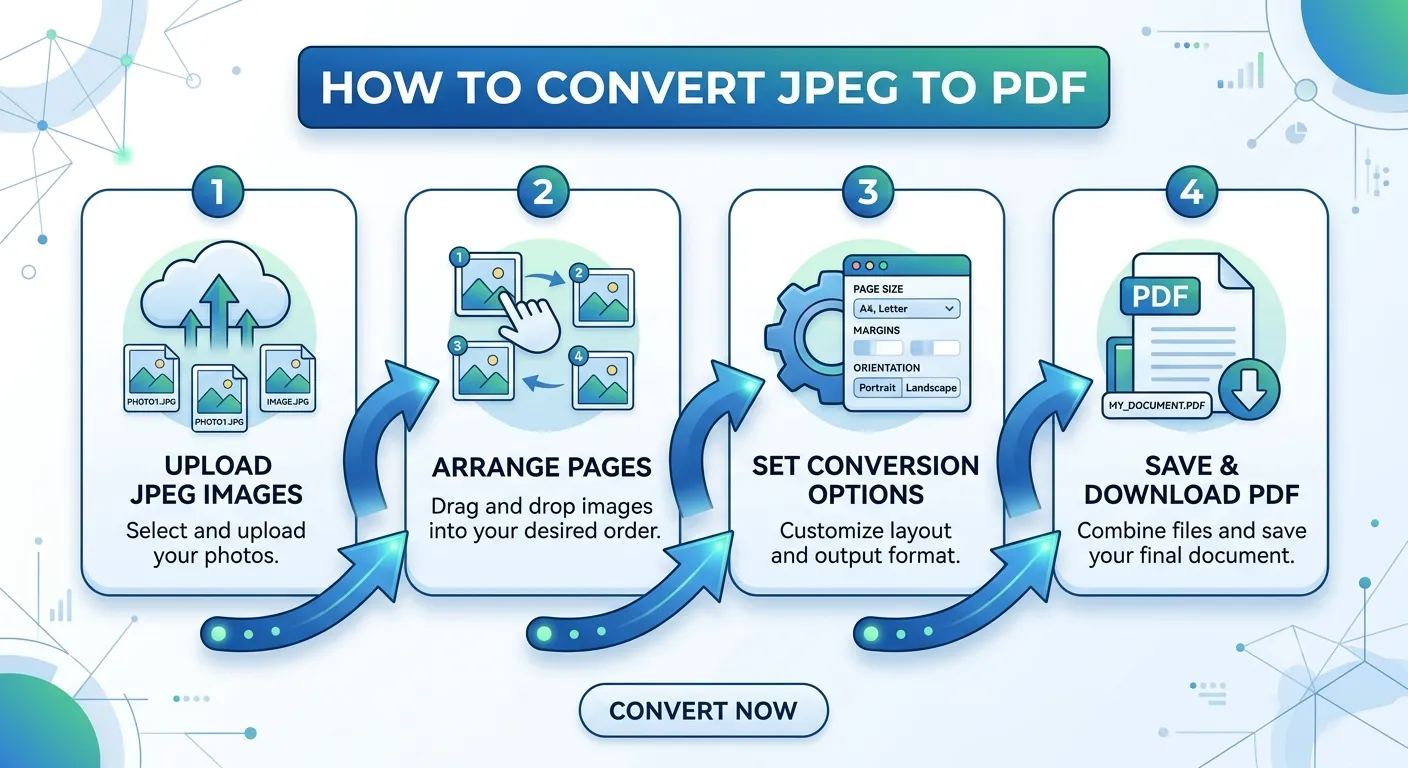
Yes, this is one of the most valued features of a JPEG to PDF tool. Instead of converting each image separately and ending up with several standalone PDFs, most converters let you upload multiple JPEGs at once and combine them into a single multi-page PDF, with each image appearing on its own page in the order you select. This is particularly useful for scanning multi-page documents using a phone camera, since each page photo can be merged into one cohesive file.
Is this useful for mobile users who scan documents with their phone?
Absolutely. Many people now use their phone cameras instead of a scanner to capture documents, which naturally produces JPEG images. Converting these photos into a PDF afterward creates a document that looks and behaves like a traditional scan, complete with consistent page sizing and print compatibility, making it far more presentable and professional than sending a folder of separate photos.
Tips for Getting the Best Results
How can you ensure the PDF looks clean and professional?
Start with well-lit, clearly focused JPEG images, since any blurriness or shadows in the original photo will carry directly into the final PDF. It also helps to crop images beforehand so that only the relevant content, such as the document page itself, is visible without excessive background. If your converter allows you to adjust page orientation or margins, taking a moment to set these correctly will make the output look more polished and organized.
Should you resize images before converting?
If your JPEG files are unusually large, resizing them slightly before conversion can help keep the final PDF file size manageable, which is useful when emailing documents or uploading them to platforms with file size limits. That said, most conversion tools handle resizing automatically to fit standard page dimensions, so this step is optional unless you're working with extremely high-resolution images.
What settings should you check before finalizing the conversion?
Before downloading your finished PDF, it's worth checking the page order if you've uploaded multiple images, since this determines how the document reads from start to finish. It's also a good idea to confirm the page size, such as A4 or Letter, matches your intended use, whether that's printing or digital sharing, so the final document displays correctly wherever it's opened.
Troubleshooting Common JPEG to PDF Issues
Why does my PDF look blurry after conversion?
Blurriness usually stems from the original JPEG file having low resolution to begin with, rather than an issue with the conversion itself. Since JPEG is a compressed format, heavily compressed or low-quality source images will carry that same quality into the PDF. Using the original, unedited photo rather than a screenshot or a re-saved copy typically produces sharper results.
What if the images appear in the wrong order in my PDF?
This usually happens when multiple files are uploaded without checking the arrangement before conversion. Most tools display a preview or thumbnail list that lets you drag and reorder images before generating the final file, so it's worth reviewing this step carefully, especially for documents with several pages, to make sure everything reads in the correct sequence.
Why is my converted PDF file larger than expected?
Large file sizes often result from high-resolution JPEGs being embedded without compression. If file size is a concern, look for a converter that provides a compression option, which reduces the overall size while keeping the visual content clear enough for everyday reading, printing, or sharing purposes.
Converting JPEG images to PDF is a simple but genuinely useful step for anyone dealing with scanned documents, photos, or multi-image files that need to be organized into one cohesive document. With the right tool and a bit of attention to image quality and page order, you can produce clean, professional PDFs in just a few clicks. For a fast and reliable option, you can try the JPEG to PDF converter available on MultiConverters.