Team Management Software: Essential Features for Organizing Modern Teams
18 Views
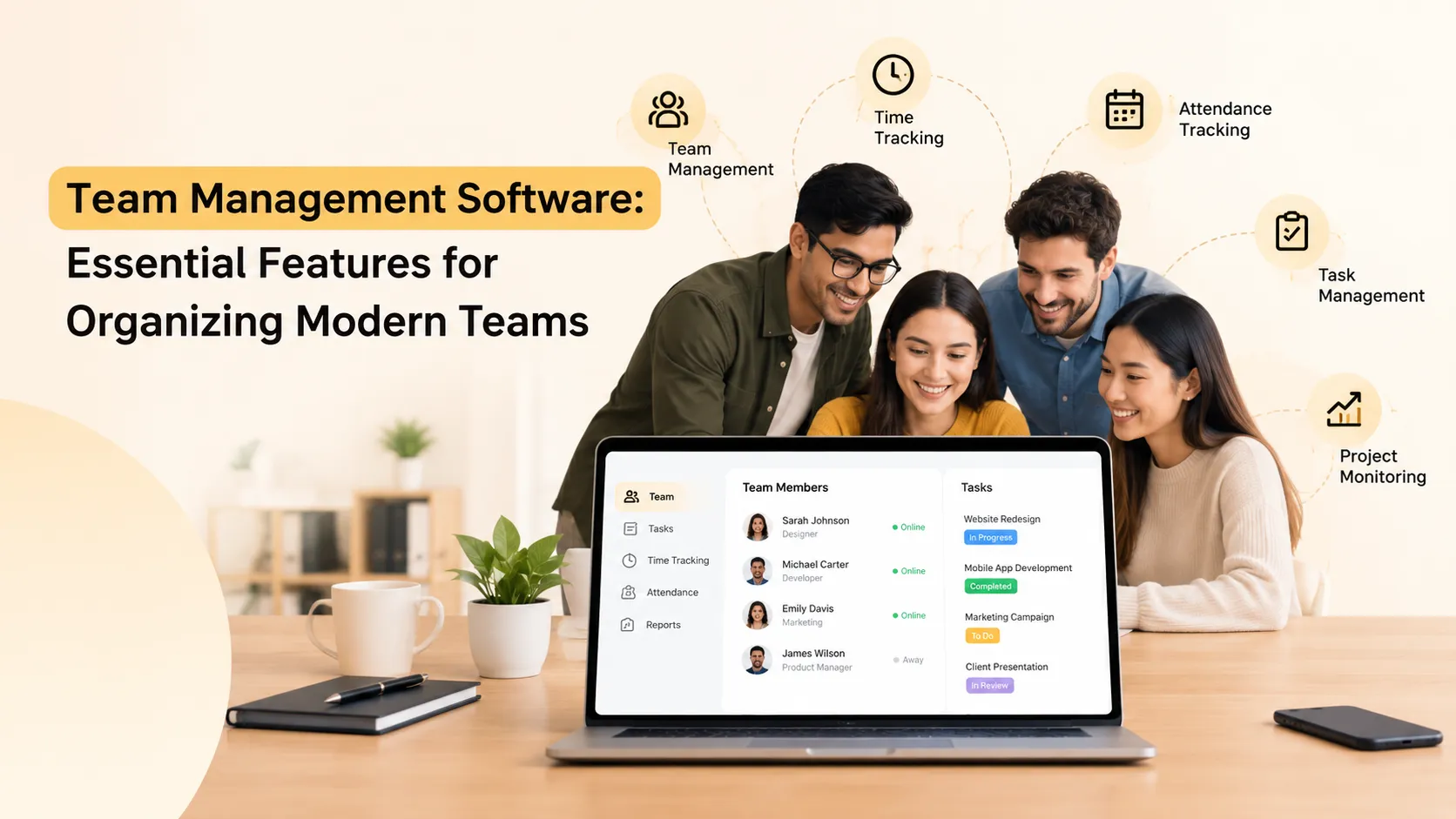
Quick answer: To organise a modern team with team management software, set up your team structure, assign tasks with clear owners, track attendance and working hours, make project progress visible, and review the data every week. Follow the nine steps below, and use the feature checks in each step to confirm your tool can support it.
Organising a team is not a one-time task. People work from different places, projects overlap, and priorities shift. Spreadsheets, group chats, and email threads can carry a small team for a while, but as the team grows, managers end up chasing updates, workloads become uneven, and records of who did what are scattered across several places.
Team management software brings task assignment, attendance, time tracking, project visibility, and team coordination into one workspace. But the tool only helps if you set it up in the right order.
This guide walks through the process step by step. Each step explains what to do, which feature you need, and how Prime Teams supports it.
What You Will Need Before You Start
-
A list of your current teams, team leads, and managers
-
A list of your active projects and who works on them
-
A rough idea of your biggest coordination problems, such as unclear ownership or uneven workloads
-
About one to two weeks for a small pilot
Step 1: Define What You Need to Fix
Before opening any tool, write down the problems you want to solve. This keeps your setup focused and helps you judge whether the software is working.
What to do
-
List your top three to five coordination problems. Examples: nobody is sure who owns a task, managers spend hours chasing updates, workloads feel uneven, attendance records are inconsistent.
-
Rank them by impact.
-
Turn each problem into a goal, such as "every task has one owner" or "managers can see workloads without asking."
Feature check
Match each problem to a feature area: ownership problems need task assignment, record problems need attendance and time tracking, and update-chasing needs project visibility.
Tip: Keep the list short. Teams that try to fix everything at once usually fix nothing.
Step 2: Set Up Your Team Structure
A clear structure is the foundation. It decides who sees what and who is responsible for whom.
What to do
-
Create a team for each real group in your organisation.
-
Assign a team lead or manager to each team.
-
Decide what each role can see and do. Give access by responsibility, not by default.
-
Add people to the right teams.
Feature check
You need multiple teams, leads and managers, and role-based permissions.
With Prime Teams
You can create multiple teams, assign team leads and managers, and configure permissions by responsibility, while keeping oversight across the organisation.
Tip: Mirror how your people actually work. A structure that reflects reality is easier to maintain than one designed on paper.
Step 3: Create Projects and Assign Tasks with Clear Owners
Ownership turns plans into action. When every task has one named owner, work stops falling through gaps.
What to do
-
Create a project for each piece of ongoing work.
-
Break each project into tasks small enough to finish in days, not weeks.
-
Assign one owner per task.
-
Set priorities so the team knows what to do first.
-
Write a short definition of done for important tasks.
Feature check
You need projects, task assignment with ownership, priorities, and easy reassignment.
With Prime Teams
You can create projects, define priorities, and assign tasks with clear ownership. Managers can see how work is distributed across the team.
Tip: Resist assigning tasks to groups. Shared ownership usually means no ownership.
Step 4: Turn On Attendance Tracking
For distributed and hybrid teams, attendance records support fair planning and consistent treatment. They also remove the guesswork that comes with manual logs.
What to do
-
Decide how working hours should be recorded for office, remote, and hybrid days. Use one process for all of them.
-
Explain the purpose to the team before switching it on.
Feature check
You need clear working-hour records, one process for all work modes, and team-level visibility for leads.
With Prime Teams
Attendance tracking sits in the same workspace as time tracking and project management, so working-hour records stay connected to the work itself.
Tip: Rules on employee monitoring and data vary by country and region. Confirm what applies to you with qualified legal advice.
Step 5: Track Time Inside Tasks
Time tracking shows where effort actually goes. It replaces assumptions about workloads with facts.
What to do
-
Ask team members to record time against the project and task they are working on, as they work.
-
Keep your project and task structure simple and consistent.
-
Explain that the goal is fair workloads and realistic planning, not surveillance.
Feature check
You need tracking inside projects and tasks, project-based timesheets, and reports by project, task, and person.
With Prime Teams
Team members track time directly inside assigned projects and tasks. Prime Teams maintains project-based timesheets and reports showing total project hours, team member contributions, and time spent across projects and tasks. Time entries can also be supported by screenshots and screen recordings for added transparency.
Tip: Entries recorded as work happens are far more accurate than hours reconstructed on Friday.
Step 6: Make Project Progress and Workloads Visible
This is the step that cuts down on status meetings. When progress is visible to anyone who needs it, managers stop asking for updates and start acting on them.
What to do
-
Check task and project status from one central view.
-
Look at who is overloaded and who has capacity.
-
Share the view with team leads, so they can manage their own teams.
Feature check
You need task and project status views, workload and capacity visibility, and on-demand reports.
With Prime Teams
You can monitor project and task status from a centralised view and see team capacity, active assignments, and project commitments. For more detail, see project management software with time tracking.
Tip: Workload imbalance is the most common hidden problem. Check it every week.
Step 7: Set a Simple Coordination Rhythm
Software supports coordination, but it does not replace a routine. A short, predictable rhythm keeps everyone aligned without constant pings.
What to do
-
Start of week: confirm priorities and owners.
-
Midweek: managers and leads review progress, hours, and workloads, and follow up on anything that looks off.
-
End of week: review what was delivered, what slipped, and why.
-
Keep ad hoc check-ins for blockers and urgent issues.
Feature check
You need reports that leads can open on their own, so reviews take minutes.
Tip: Review the data, not the people. Ask what blocked the work before drawing conclusions.
Step 8: Pilot with One Team, Then Roll Out
A pilot catches problems while they are still small and creates internal champions.
What to do
-
Choose one team and one or two active projects.
-
Run the full setup for one to two weeks.
-
Collect feedback from the team lead and a few team members: what was easy, what was confusing, and what felt like extra effort.
-
Adjust your structure, task categories, and policies.
-
Roll out to other teams gradually, supporting each through its first week.
Feature check
Look for a free trial and responsive support.
Tip: Prime Teams offers a free trial, which makes a real pilot practical.
Step 9: Review the Data and Keep Improving
The value of team management software builds over time. Each week of data makes planning more accurate.
What to do
-
Review hours by project, task, and person each week.
-
Act on one or two findings each month, such as redistributing work or tightening a process.
-
Share what changed with the team, so they see their data leading to improvements.
-
Revisit your structure, permissions, and policies every quarter.
Some teams also want additional transparency. Prime Teams offers live screen monitoring for teams that choose to use it. Introduce it with a clear, open policy.
Tip: Data that nobody reviews soon stops being recorded. Protect the weekly review.
Common Mistakes to Avoid
-
Skipping the explanation. Teams that do not understand why a tool is introduced often treat it as surveillance.
-
Setting up tools in the wrong order. Structure and ownership come before time tracking and reports.
-
Using separate tools for tasks, time, and attendance. Disconnected data brings back manual reconciliation.
-
Rolling out to everyone at once. A pilot saves a lot of rework.
-
Overcomplicating the setup. Start simple, and expand as the team gets comfortable.
-
Never reviewing the data. The value comes from acting on what it shows.
A Quick Setup Checklist
-
Problems and goals are written down.
-
Teams, leads, and permissions are set.
-
Projects exist, and every task has one owner and a priority.
-
Attendance tracking is on, with a clear policy.
-
Time is tracked inside tasks.
-
Progress and workloads are visible to leads and managers.
-
A weekly review rhythm is in place.
-
A pilot has run, and feedback has been applied.
-
Data is reviewed and acted on every month.
Frequently Asked Questions
What is team management software?
It is a platform that helps managers organize people and work by combining task assignment, attendance, time tracking, project visibility, and team structure in one workspace.
How do I set up team management software?
Start by defining your problems, then set up teams and permissions, create projects and assign owned tasks, turn on attendance and time tracking, make progress visible, and run a weekly review. Pilot with one team before rolling out.
Can Prime Teams track attendance and time in the same tool?
Yes. Prime Teams includes attendance tracking alongside time tracking, project management, and reporting in one workspace.
Can I create multiple teams and assign team leads?
Yes. You can create multiple teams, assign team leads and managers, and set permissions based on responsibilities.
Can managers see each person's workload?
Yes. Prime Teams provides visibility into team capacity, active assignments, and project commitments, so you can redistribute work when someone is overloaded.
Final Thoughts
Good team organisation comes from doing a few things in the right order: clear structure, clear ownership, reliable records of time and attendance, visible progress, and a steady review rhythm. Team management software makes each of those practical, but the routine around it makes them last.
Follow the steps, start with a pilot, and let the data guide your next improvement.
Ready to Organise Your Team in One Place?
Prime Teams brings task assignment, attendance, time tracking, and project visibility into one workspace. Start a free trial and run a real project through it, or see how it works for client-focused teams on the Prime Teams page for agencies.