The Small Business Website Health Checklist: 15 Technical Issues That Cost Organic Traffic
By Amir
29 Views
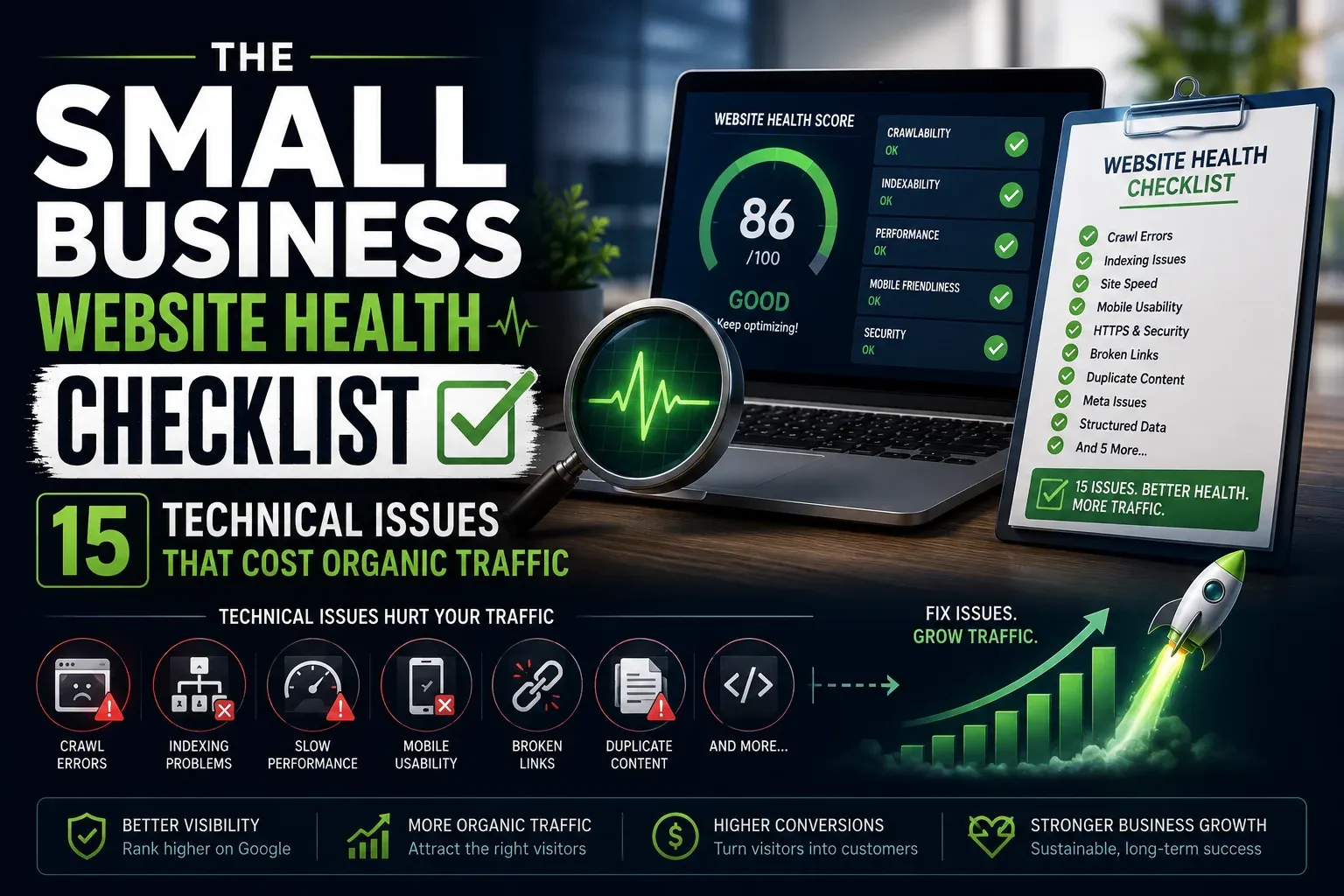
A small business website can have great services, strong testimonials, attractive design, and useful content, yet still struggle to get traffic from Google.
In many cases, the problem is not the business. It is not always the content either.
The website may have technical issues that make it harder for search engines to find important pages, understand the content, index the right URLs, or provide a smooth experience to visitors.
These problems are often invisible to business owners.
A page may look fine on a laptop but be blocked from Googlebot. A service page may exist but have no internal links. A website may load on desktop but perform poorly on mobile. A sitemap may list redirects and broken pages. A redesign may accidentally add noindex tags to important pages.
Google uses the mobile version of a site’s content for indexing and ranking. That means the mobile experience, page content, structured data, and crawlability of your website can directly affect how Google understands your business.
The good news is that many technical SEO problems can be identified with a repeatable website health check.
This guide gives you a practical checklist of 15 issues that commonly reduce organic traffic for small businesses. It is designed for service businesses, local companies, agencies, SaaS brands, e-commerce stores, consultants, and growing B2B websites.
What Is a Small Business Website Health Check?
A website health check is a structured review of the technical, on-page, performance, and indexation factors that affect search visibility.
It helps you answer questions such as:
- Can Google find my important pages?
- Can Google crawl my website without restrictions?
- Are my service pages indexed?
- Is my website mobile friendly?
- Do visitors experience slow loading pages?
- Are broken links hurting users and search engines?
- Does my sitemap contain the right URLs?
- Are duplicate pages confusing Google?
- Do old redirects create crawl waste?
- Is the website secure?
- Are technical issues preventing leads and sales?
A proper check does not focus only on rankings.
It checks whether the foundation of your website supports traffic growth.
Why Technical SEO Matters for Small Businesses
Technical SEO is sometimes treated as an enterprise level concern.
That is a mistake.
A small business may have fewer pages than a large e-commerce store, but every important page often has more value. A single service page may generate leads. A location page may bring calls. A product category page may drive sales. A pricing page may influence conversions.
If one of these pages has a technical problem, the business can lose a meaningful amount of potential revenue.
Technical issues can cause
- Lower organic traffic
- Fewer leads
- Reduced local visibility
- Fewer product sales
- Poor user experience
- Slower website performance
- Lost trust from visitors
- Wasted content investment
- Weak performance after a redesign
- Missed opportunities in Google Search
A simple example
A local HVAC company writes a detailed service page for emergency AC repair.
The page has useful content, customer reviews, service details, pricing guidance, and a strong contact form.
But the page has a noindex tag left behind from development.
Google can crawl the website but is told not to include that specific page in search results.
The business may never rank for emergency repair searches, no matter how good the content is, until the technical problem is fixed.
How to Use This Checklist
Review each issue one by one.
For every item, identify:
- Whether the issue exists
- Which pages are affected
- How serious the problem is
- Whether it affects a revenue generating page
- Whether it requires a developer, SEO specialist, or content update
- How you will verify the fix after implementation
Start with pages that matter most.
These usually include:
- Homepage
- Core service pages
- Product category pages
- Product pages
- Location pages
- Contact page
- Booking or consultation pages
- Pricing page
- Top blog posts
- Lead magnet landing pages
- Resource hub pages
1. Important Pages Are Blocked From Crawling
Google must be able to access a page before it can fully process its content and determine whether it should appear in search results.
One common technical issue is accidental crawling restrictions.
What blocks crawling
A robots.txt file can tell search engine bots not to crawl certain site sections.
For example:
textUser-agent: *
Disallow: /admin/
Disallow: /account/
These rules make sense for private or low value pages.
But problems happen when important URLs are blocked.
Common small business mistakes
- Blocking the whole website with
Disallow: / - Blocking a blog folder after a website migration
- Blocking service pages through a CMS setting
- Blocking product categories
- Blocking important JavaScript or CSS files
- Copying staging site restrictions to the live site
- Blocking a location page folder
- Blocking public landing pages by mistake
How to check
- Visit
yourdomain.com/robots.txt - Review every
Disallowinstruction - Use Google Search Console URL Inspection
- Crawl the site using an SEO crawler
- Ask a developer to verify server and CDN rules
- Check whether a security plugin blocks verified search bots
How to fix it
- Remove crawl blocks from important public pages
- Keep private pages protected through login access where needed
- Allow Google to access required page resources
- Test the affected URL after deployment
- Submit an updated sitemap if the issue affected many pages
2. Important Pages Have a Noindex Tag
A noindex directive tells Google not to include a page in search results.
This is different from robots.txt.
Robots.txt controls crawling. Noindex controls whether the crawled page should be shown in Google Search.
What a noindex tag looks like
xml<meta name="robots" content="noindex, follow">
It can also be delivered through an HTTP header called X-Robots-Tag.
Pages that may appropriately use noindex
- Private account pages
- Thank-you pages
- Login pages
- Cart pages
- Checkout pages
- Internal search result pages
- Development pages
- Low value duplicate pages
- Admin pages
Pages that should usually be indexable
- Homepage
- Core services
- Product pages
- Main product categories
- Location pages
- Blog posts with search value
- Resource pages
- Pricing pages
- Case studies
- Contact pages when relevant to local search
Common noindex problems
- A website launch setting remains active
- An SEO plugin marks the wrong page type as noindex
- A template applies noindex across service pages
- A developer forgets to remove noindex after testing
- A website redesign changes page settings
- WordPress visibility settings are incorrectly configured
How to fix it
- Use Google Search Console URL Inspection to identify indexability
- Check the page source for
noindex - Review CMS and SEO plugin settings
- Remove noindex only from pages that should rank
- Confirm the canonical URL returns a 200 status code
- Request indexing after a meaningful technical correction
3. Your Website Has No Clean XML Sitemap
An XML sitemap is a file that tells search engines which URLs you consider important.
It helps search engines discover site pages more efficiently, especially on new websites, sites with deep page structures, and websites with limited internal linking. A sitemap does not guarantee crawling or indexing, but it provides Google with useful information about the pages and files you want to be considered.
What a healthy sitemap should include
- Canonical URLs
- Indexable pages
- URLs returning a 200 status code
- Important service and product pages
- Important blog posts
- Accurate absolute URLs
- Current pages that you want in search results
What a sitemap should not include
- Redirect URLs
- Broken URLs
- 404 pages
- 410 pages
- Pages marked noindex
- Duplicate URL versions
- Login pages
- Search result pages
- Staging URLs
- Parameter pages with no search value
- Old deleted pages
Google recommends using fully qualified absolute URLs in sitemaps and including the canonical URLs you want to appear in search results.
How to check your sitemap
- Look for
yourdomain.com/sitemap.xml - Check the sitemap location in robots.txt
- Review the Sitemaps report in Google Search Console
- Open sitemap files and spot check URLs
- Crawl the sitemap with an SEO tool
- Check whether the URLs return 200 responses
- Confirm that the listed URLs are indexable and canonical
How to fix it
- Generate an XML sitemap through your CMS, SEO plugin, or developer workflow
- Submit it in Google Search Console
- Remove redirects and non-indexable pages
- Add important pages missing from the sitemap
- Keep sitemap URLs aligned with canonical URLs
- Update the sitemap after a migration, redesign, or major content restructuring
4. Your Site Uses Conflicting Canonical Tags
A canonical tag helps search engines understand which version of a page should be treated as the primary version.
This matters when the same or highly similar content exists on multiple URLs.
Common duplicate URL versions
- HTTP and HTTPS versions
- www and non-www versions
- Trailing slash and non-trailing slash versions
- Uppercase and lowercase URLs
- Product URLs with parameters
- Filtered category pages
- Print pages
- Tracking parameter URLs
- Duplicate CMS paths
- Product pages accessible through multiple categories
What a canonical tag looks like
xml<link rel="canonical" href="https://www.example.com/service-page/" />
Why canonical conflicts hurt small businesses
Google may index a less useful page version.
This can lead to:
- The wrong URL appearing in search
- Link value splitting across duplicates
- Confusing reporting in Google Search Console
- Reduced crawl efficiency
- Important pages being excluded
- Unwanted parameter pages appearing in search
Canonical best practices
- Use one clear canonical tag per indexable page
- Point the canonical to a live 200 URL
- Use self-referencing canonicals on preferred indexable pages
- Keep sitemap URLs canonical
- Link internally to canonical URLs
- Redirect non-preferred HTTP or hostname versions
- Avoid canonical chains
- Do not canonicalize unrelated pages together
How to check
- Inspect page source
- Use Google Search Console URL Inspection
- Compare user-declared canonical with Google-selected canonical
- Crawl the site for missing or multiple canonicals
- Check whether canonical URLs redirect
- Review redirects, sitemap URLs, and internal links together
5. Old Redirects Create Chains and Dead Ends
Redirects send users and search engines from one URL to another.
They are essential when pages move, URLs change, domains change, or a website is redesigned.
But poor redirect management can create long chains, loops, and broken user journeys.
What a redirect chain looks like
textOld URL → Redirect → Intermediate URL → Redirect → Final URL
A better setup is:
textOld URL → Redirect → Final URL
Common redirect problems
- Old pages redirect through multiple versions
- Internal links point to redirected URLs
- A new migration creates a second redirect on top of an old redirect
- HTTP redirects to www and then to HTTPS
- Old URLs redirect to irrelevant pages
- Deleted pages redirect to the homepage
- Redirect loops prevent access
- Product URLs redirect to generic category pages without relevance
Why redirect issues matter
Redirect chains can slow the user experience and make crawling less efficient.
They can also make it harder for Google to understand the final preferred URL.
How to fix redirects
- Redirect old URLs directly to the final relevant destination
- Update internal links to point to final URLs
- Remove redirect loops
- Use 301 redirects for permanent page moves
- Use temporary redirects only for truly temporary changes
- Do not redirect irrelevant deleted pages to the homepage
- Return a proper 404 when no relevant replacement exists
- Test redirects after any migration
6. Your Website Has Broken Internal Links
Internal links connect your own pages.
They help visitors navigate the website and help Google discover pages, understand relationships, and identify important content.
A broken internal link points to a URL that no longer works.
Common causes of broken internal links
- Page URLs change during a redesign
- Blog post slugs are updated
- Products are removed
- Services are renamed
- A CMS migration changes URL structures
- Navigation menus are not updated
- Old calls to action point to deleted pages
- Internal links use outdated URLs
Why broken links hurt SEO
Broken internal links can:
- Create poor user experiences
- Waste crawl activity
- Prevent users from reaching conversion pages
- Reduce internal authority flow
- Make the website look poorly maintained
- Stop Google from discovering deeper pages
How to check
- Crawl your site with Screaming Frog or another crawler
- Review Google Search Console indexing reports
- Check menus, footer links, sidebar links, and CTA buttons manually
- Review top traffic pages first
- Check recently redesigned areas of the website
How to fix it
- Update the link to the correct live URL
- Add a relevant redirect if the old URL has external links or traffic value
- Remove links to pages that no longer have a replacement
- Check internal links after every redesign or URL change
- Build a recurring monthly link maintenance process
7. Your Best Pages Are Orphaned
An orphan page is a page that has no internal links pointing to it.
The page may be in a sitemap, but visitors and crawlers cannot easily reach it through normal site navigation.
Why orphan pages are a problem
Orphan pages can be:
- Discovered slowly
- Crawled less often
- Difficult for users to find
- Weakly connected to the site’s topical structure
- Less likely to receive internal authority
- More likely to become outdated or forgotten
Pages that are often orphaned
- New service pages
- Old blog posts
- Campaign landing pages
- Location pages
- PDF resources
- Seasonal pages
- Product pages not linked from categories
- Case studies
- Comparison pages
- Old lead magnet pages
How to find orphan pages
- Crawl the website and compare discovered URLs against sitemap URLs
- Review URLs in Google Search Console that receive impressions but have no site links
- Check your CMS page inventory
- Use a professional crawler that identifies orphan URLs
- Review pages with little or no internal link count
How to fix orphan pages
- Add contextual internal links from relevant articles
- Link important pages from category or hub pages
- Add pages to relevant service navigation
- Create resource hubs or topic clusters
- Link related blog posts together
- Add breadcrumbs where relevant
- Remove or redirect low-value orphan pages that no longer serve a purpose
8. The Website Is Too Slow for Real Visitors
Slow websites cost attention, trust, and conversions.
They can also make it harder for users to engage with your content, call your business, request a quote, add products to cart, or complete a form.
Google’s Core Web Vitals measure real-world user experience across loading performance, responsiveness, and visual stability. Google recommends aiming for Largest Contentful Paint within 2.5 seconds, Interaction to Next Paint below 200 milliseconds, and Cumulative Layout Shift below 0.1.
Largest Contentful Paint
Largest Contentful Paint measures how long it takes for the main visible content to appear.
This is often:
- A hero image
- Main page heading
- Product image
- Large content block
- Banner image
Interaction to Next Paint
Interaction to Next Paint measures how quickly a page responds after a visitor interacts with it.
It matters when users:
- Click a button
- Open a menu
- Select a product option
- Submit a form
- Use a filter
- Tap an accordion
- Add an item to a cart
Cumulative Layout Shift
Cumulative Layout Shift measures unexpected visual movement.
It happens when content shifts while the page loads.
For example:
- A button moves just as a user tries to click it
- An image loads and pushes the text down
- A banner appears above the page content
- A font loads late and changes the page layout
Common causes of slow small business sites
- Oversized images
- Uncompressed images
- Too many WordPress plugins
- Cheap or overloaded hosting
- Excessive JavaScript
- Third-party chat tools
- Large video backgrounds
- Heavy page builders
- Too many tracking scripts
- Large font files
- No caching
- Poor content delivery network configuration
How to improve website speed
- Convert large images to modern formats where appropriate
- Compress images before upload
- Set width and height dimensions for images
- Remove unused plugins and scripts
- Delay nonessential JavaScript
- Use caching
- Improve hosting when server response times are poor
- Use a content delivery network where appropriate
- Minimize third-party tracking tools
- Preload critical fonts carefully
- Test key pages on mobile networks
Core Web Vitals are used by Google’s ranking systems, but they should not be treated as a shortcut to ranking first. Strong content, relevance, and helpfulness still matter. Good performance supports both search visibility and a better experience for potential customers.
9. Mobile Visitors See Less Important Content
Google uses the mobile version of your website’s content for indexing and ranking.
If your mobile site hides important information that appears on desktop, Google may not fully evaluate that content for search visibility.
Common mobile SEO problems
- Desktop content is missing on mobile
- Mobile menus hide important links
- Service details are removed to make pages shorter
- Product descriptions are truncated
- Reviews do not load on mobile
- Structured data differs across devices
- Mobile pages contain different canonicals
- Mobile pages have noindex tags
- Buttons are difficult to tap
- Text is too small to read
- Horizontal scrolling appears
- Popups block the main content
What should remain consistent
Your mobile and desktop versions should provide the same essential:
- Main content
- Headings
- Internal links
- Canonical tags
- Robots directives
- Structured data
- Product details
- Service details
- Images where relevant
- Reviews and trust signals
- Calls to action
How to check
- Test pages on real mobile devices
- Use browser device emulation
- Use Google Search Console URL Inspection
- Compare mobile and desktop source output
- Review mobile usability reports
- Test forms, buttons, filters, menus, and checkout flows
10. Images Are Not Optimized for Search or Speed
Images are often one of the largest contributors to slow pages.
They can also create missed visibility opportunities when they lack useful descriptive context.
Common image issues
- Huge image file sizes
- Images uploaded at full camera resolution
- Missing width and height attributes
- Generic file names
- Missing alt text
- Decorative images incorrectly treated as informative
- Important images blocked from crawling
- Text embedded inside images instead of HTML
- Large slideshow files
- Heavy background video files
- Unoptimized product images
Why image optimization matters
Image optimization can improve:
- Page speed
- Largest Contentful Paint
- Accessibility
- Image search visibility
- Product understanding
- User experience
- Mobile data usage
Image optimization checklist
- Compress large images
- Use appropriate modern file formats
- Use descriptive file names where practical
- Write useful alt text for meaningful images
- Leave decorative images with empty alt attributes when appropriate
- Add image dimensions
- Do not rely on images for text that should be crawlable HTML
- Lazy load images below the fold
- Avoid lazy loading the main hero image when it delays visible content
- Use responsive image sizes for different devices
11. The Website Uses HTTP or Has Security Problems
HTTPS encrypts the connection between a visitor and your website.
Visitors expect a secure website, especially when they submit a contact form, request a quote, create an account, enter payment details, or share personal information.
Common security and HTTPS issues
- The website still uses HTTP
- HTTP pages do not redirect correctly to HTTPS
- Mixed content warnings appear
- Images, scripts, or styles load over HTTP
- SSL certificates expire
- Login or payment pages are insecure
- Malware warnings appear
- Hacked pages are indexed
- Spam URLs are created by attackers
- A web application firewall blocks legitimate visitors or crawlers
Why HTTPS matters for SEO
HTTPS is a baseline requirement for modern websites.
It supports user trust, browser security, reliable feature access, and safer data handling.
How to check
- Visit both HTTP and HTTPS versions of your domain
- Confirm HTTP redirects to the preferred HTTPS URL
- Check browser security warnings
- Review SSL certificate validity
- Use Google Search Console security reports
- Review unexpected indexed pages
- Monitor server logs for suspicious requests
- Scan the website after plugin or CMS changes
How to fix it
- Install and maintain a valid SSL certificate
- Redirect all HTTP pages to HTTPS
- Fix mixed content assets
- Update internal links to HTTPS
- Update sitemap URLs to HTTPS
- Update canonical tags to HTTPS
- Keep CMS software, themes, and plugins updated
- Remove malicious pages quickly
- Request security review if Google flags the site
12. Duplicate Pages Confuse Google
Duplicate content does not always create a penalty.
However, duplicate or near duplicate pages can confuse search engines about which URL to index and rank.
Small businesses often create duplicates without realizing it.
Common duplicate content sources
- HTTP and HTTPS versions
- www and non-www versions
- URL parameters
- Printer friendly URLs
- Product variants
- Product pages in multiple categories
- Similar location pages
- Repeated service pages
- Tag archives
- Pagination pages
- Filtered category pages
- CMS-generated duplicate paths
- Staging sites indexed by mistake
Why duplicates matter
Duplicate URLs can:
- Split internal link signals
- Cause the wrong page to rank
- Waste crawl resources
- Create canonical conflicts
- Reduce clarity in performance reporting
- Keep important pages out of the index
- Create weak pages that compete with each other
How to fix duplicate content
- Select a preferred canonical URL
- Use canonical tags correctly
- Use redirects for duplicate URL versions where appropriate
- Update internal links to preferred URLs
- Keep only canonical URLs in XML sitemaps
- Improve unique copy on pages that should rank separately
- Noindex low-value archive or filter pages when appropriate
- Prevent parameter duplication from spreading through internal links
- Secure staging environments from indexation
13. Structured Data Is Missing or Invalid
Structured data is code that helps search engines interpret the type of content on a page.
It can help clarify whether a page represents:
- A business
- A local business
- A product
- An article
- A service
- A breadcrumb trail
- A review
- An event
- A job listing
- A video
- A frequently asked question
Structured data does not guarantee rich results. But accurate markup can improve how clearly search engines understand a page and can make a page eligible for certain enhanced search appearances.
Structured data that small businesses may need
- Organization markup for the company
- LocalBusiness markup for local business details
- Product markup for e-commerce products
- Article markup for blog posts
- BreadcrumbList markup for site navigation
- Service markup where appropriate
- Review markup only when it follows platform guidelines
- FAQ markup when the FAQ appears visibly on the page
Common structured data mistakes
- Marking up content that visitors cannot see
- Adding fake review ratings
- Using outdated business details
- Using incorrect price or availability data
- Marking every page with irrelevant schema types
- Adding broken JSON-LD code
- Leaving old schema after a redesign
- Using different structured data on mobile and desktop
- Adding markup for content that is loaded incorrectly through JavaScript
Google advises that structured data should be present on both desktop and mobile versions when your site serves different versions of content, and that it should accurately use the relevant URLs.
How to check
- Use Google’s Rich Results Test
- Review Enhancements reports in Google Search Console
- Validate JSON-LD syntax
- Compare markup with visible page content
- Review business information across the website
- Check product data after inventory or price changes
- Revalidate after major template changes
14. Google Cannot Understand Your Site Structure
Site architecture is how pages are organized and connected.
A clear site structure helps visitors find what they need and helps search engines understand which pages are most important.
Signs of weak site architecture
- Important service pages are buried deep in navigation
- Blog posts are not organized into topics
- Categories are unclear or overlapping
- Product categories compete with one another
- Navigation menus are overloaded
- Important pages have few internal links
- Pages are accessible only through search or filters
- Breadcrumbs are missing on complex sites
- Old pages remain disconnected after a redesign
- Related content is not linked together
Why architecture affects organic traffic
Weak architecture can make it harder for Google to:
- Discover deep pages
- Understand topical relevance
- Prioritize important URLs
- Crawl efficiently
- Connect supporting content with core conversion pages
It can also make it harder for users to:
- Find services
- Compare products
- Reach contact pages
- Read related resources
- Navigate on mobile devices
How to improve site structure
- Create logical main categories
- Group related services together
- Build topic hubs for major subjects
- Link blog posts to service or product pages where genuinely relevant
- Add breadcrumbs to deep content sections
- Keep high-value pages close to the main navigation
- Use descriptive navigation labels
- Review pages with low internal link counts
- Avoid creating many overlapping categories
- Create a content map for major customer journeys
15. You Are Not Monitoring Google Search Console
Technical SEO is not a one-time project.
Websites change constantly.
New pages are published. Plugins update. Developers deploy changes. Products are removed. Redirects are added. Hosting changes. Content is refreshed. A small technical issue can quickly affect many URLs.
Google Search Console is one of the most important free tools for monitoring organic search health.
What to review weekly
- New indexing errors
- Pages blocked by robots.txt
- Pages excluded by noindex
- Soft 404 reports
- Server errors
- Redirect errors
- Manual actions
- Security issues
- Search performance changes
- Sitemap processing errors
What to review monthly
- Core Web Vitals
- Mobile usability
- Top pages by clicks and impressions
- Pages losing traffic
- Queries losing rankings
- Indexation patterns
- Canonical issues
- Structured data enhancements
- Internal linking opportunities
- Newly discovered broken pages
What to review after every major change
- Site migration
- Redesign
- New CMS
- URL structure change
- Domain change
- Hosting change
- HTTPS migration
- New navigation
- Major plugin update
- Framework change
- E-commerce platform update
Why monitoring matters
The earlier you discover a problem, the easier it is to fix.
A noindex issue found within a day may affect only a few pages. The same issue left unchecked for months can remove a large section of a website from search visibility.
A Monthly Website Health Routine for Small Businesses
You do not need to perform a full technical audit every week.
But you should create a regular maintenance routine.
Weekly routine
- Check Google Search Console for major errors
- Review sudden traffic drops
- Confirm that new important pages are indexed
- Check form submissions and lead tracking
- Review broken pages reported by users
- Check for security alerts
Monthly routine
- Run a crawl of the website
- Review broken internal links
- Check redirect chains
- Review sitemap health
- Monitor Core Web Vitals
- Test key mobile pages
- Review index coverage
- Update outdated business information
- Check structured data on important templates
- Review pages with low or declining organic traffic
Quarterly routine
- Run a deeper technical SEO audit
- Review site architecture
- Identify orphan pages
- Consolidate thin or duplicate pages
- Evaluate content hubs
- Review competitor technical performance
- Test website speed on key conversion pages
- Audit plugins, scripts, and third-party tools
- Review local SEO landing pages
- Update the technical SEO roadmap
For a deeper framework covering crawlability, robots.txt, canonicals, redirects, XML sitemaps, Core Web Vitals, JavaScript rendering, mobile-first indexing, structured data, server logs, and audit priorities, review this full technical SEO checklist.
When to Fix It Yourself and When to Hire Help
Some issues are simple enough for a business owner or marketing manager to address.
Others require technical expertise.
Issues you may be able to fix internally
- Updating internal links
- Compressing large images
- Adding descriptive image alt text
- Updating page titles and meta descriptions
- Checking sitemap submission
- Adding new pages to relevant content hubs
- Reviewing basic mobile layout
- Removing unnecessary WordPress plugins
- Updating outdated business details
- Monitoring Search Console reports
Issues that may need an SEO specialist or developer
- Incorrect robots.txt rules
- Site-wide noindex issues
- Canonical conflicts
- Large redirect mapping projects
- JavaScript rendering errors
- Server errors
- Faceted navigation problems
- E-commerce product duplication
- Site migration planning
- Structured data template errors
- Core Web Vitals problems
- Security or hacked content issues
- Log file analysis
- International SEO implementation
Final Thoughts
Small business SEO does not depend only on publishing more content.
It depends on whether search engines can find, crawl, render, understand, and index the content you already have.
A technically healthy website makes it easier for Google to discover your service pages, trust your preferred URLs, understand your business, and send potential customers to the right pages.
Start with the 15 issues in this checklist.
Fix the highest-impact problems first:
- Important pages blocked from crawling
- Noindex tags on revenue pages
- Broken or missing sitemap files
- Canonical conflicts
- Redirect chains
- Broken internal links
- Slow mobile performance
- Missing mobile content
- Poor site structure
- Unmonitored Search Console errors
Technical SEO is not about chasing perfection.
It is about removing the hidden barriers that stop your website from earning the organic traffic, leads, and sales it deserves.