Rectify QuickBooks Banking Error 102 with Simple Solutions
33 Views
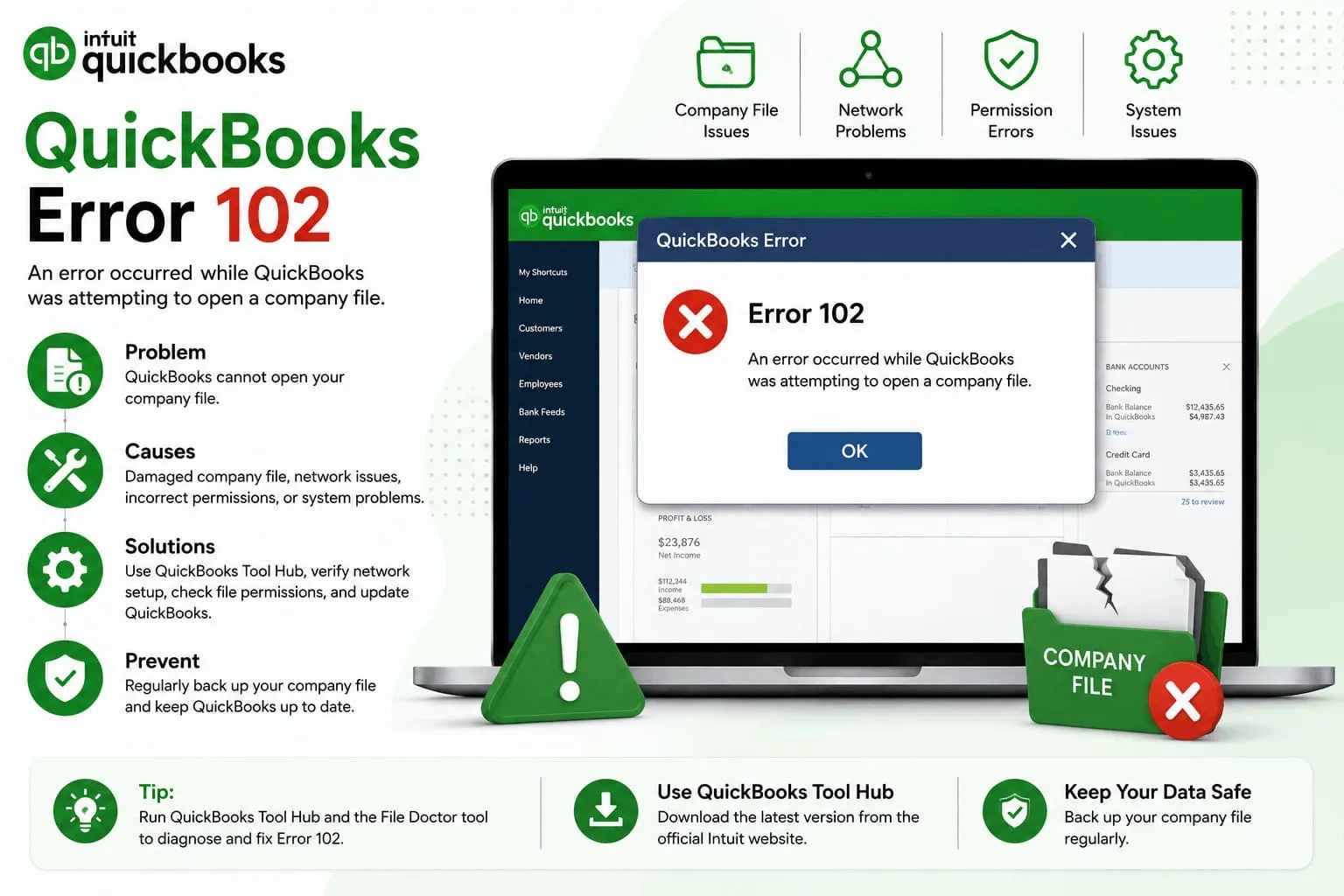
QuickBooks Online makes accounting and bookkeeping easier, but users may occasionally encounter banking-related errors. QuickBooks Error 102 is one such issue. It commonly appears when QuickBooks Online cannot connect properly with your bank or financial institution.
The error may prevent QuickBooks from downloading recent banking transactions or updating account information. In many cases, the problem is temporary and can be resolved by checking the bank's website, verifying your login details, or manually updating the bank connection.
This guide explains what QuickBooks Error 102 is, its causes and symptoms, and up to eight step-by-step solutions to help you restore the connection.
What Is QuickBooks Error 102?
QuickBooks Error 102 is generally a banking connection error in QuickBooks Online. It can occur when QuickBooks has difficulty communicating with your bank's website or retrieving account information.
You may see the error while trying to connect a bank account, download transactions, or update existing banking data. The issue can originate from QuickBooks, your bank's website, your internet connection, or incorrect banking credentials.
Importantly, Error 102 does not necessarily mean that your QuickBooks company file or accounting data is damaged.
Causes of QuickBooks Error 102
Several factors can trigger QuickBooks Error 102, including:
- Bank website maintenance: Your bank may temporarily take its online banking services offline for maintenance.
- Bank server problems: Temporary outages or technical issues at the financial institution can interrupt the connection.
- Incorrect login credentials: An outdated username, password, or other banking information may prevent QuickBooks from connecting.
- Unsupported bank connection: Your bank or financial institution may have changed its online banking system or connection requirements.
- Internet connectivity issues: A slow or unstable internet connection can interfere with the update process.
- Browser-related problems: Cached files, cookies, or browser extensions can sometimes interfere with QuickBooks Online.
- Security or verification changes: Your bank may require additional authentication, such as a security code or verification step.
- Temporary QuickBooks connection issues: The problem may simply be a short-term communication failure between QuickBooks and your financial institution.
Symptoms of QuickBooks Error 102
You may notice one or more of the following symptoms:
- QuickBooks displays an error message containing Error 102.
- Bank transactions fail to download or update.
- Your connected bank account does not show the latest transactions.
- QuickBooks repeatedly asks you to reconnect your bank account.
- The banking update takes unusually long or fails.
- QuickBooks cannot establish a connection with your financial institution.
- Recently completed banking transactions are missing from the Banking section.
Step-by-Step Solutions for QuickBooks Error 102
1. Check Your Bank's Website
Before changing anything in QuickBooks, visit your bank's official website and sign in directly.
Check whether:
- You can log in successfully.
- Your account information is available.
- The website displays a maintenance notice.
- The bank requires additional verification.
- There are many alerts affecting online banking.
If the bank's website is unavailable, wait until its services are restored and then try QuickBooks again.
2. Wait and Try the Connection Again
Sometimes Error 102 is temporary. If your bank is experiencing a short-term outage or maintenance, QuickBooks may reconnect automatically once the service becomes available.
Wait for a while and then attempt to update the account again. Avoid repeatedly changing your banking credentials when there is no evidence that they are incorrect.
3. Manually Update Your Bank Account
If your bank's website is working normally, try updating the account from QuickBooks Online.
- Sign in to QuickBooks Online.
- Open the Banking or Transactions section.
- Select the affected bank account.
- Choose the option to Update the account.
- Wait for QuickBooks to complete the update.
- Check whether the latest transactions appear.
If the update succeeds, review the downloaded transactions before categorizing or adding them to your books.
4. Verify Your Banking Credentials
If your bank recently changed its password or security settings, QuickBooks may no longer be able to use the stored credentials.
Sign in to the bank's website manually and confirm that your username and password work. If necessary, update the connection information in QuickBooks.
Be careful when entering credentials, because repeated failed login attempts could potentially trigger security restrictions from your financial institution.
5. Check for Bank-Specific Notifications
Your bank may require you to accept updated terms, confirm your identity, or complete a security challenge before third-party connections can work.
Sign in directly to your bank and look for notifications, messages, or authorization requests. Complete any required steps and then return to QuickBooks to update the account.
6. Try a Private or Incognito Browser Window
Browser cache and cookies can occasionally interfere with QuickBooks Online.
Try opening QuickBooks in a private or incognito window:
- Open a private/incognito browser window.
- Sign in to QuickBooks Online.
- Open the Banking section.
- Select the affected account.
- Try updating the account.
If the connection works in the private window, clearing your browser's cache and cookies or disabling problematic extensions may resolve the issue in your normal browser.
7. Check the Bank Connection and Account Details
Make sure you have selected the correct financial institution and account.
If your bank has recently changed its online banking platform, search for the updated bank connection within QuickBooks rather than assuming the old connection is still valid.
If you decide to reconnect the account, carefully review the available account-matching options to avoid accidentally creating duplicate accounts or transactions.
8. Contact Your Bank or QuickBooks Support
If the problem continues after the previous steps, determine whether the issue is specific to your bank or QuickBooks.
Contact your bank if:
- Its website is unavailable.
- Your online banking login does not work.
- The bank has changed its security or connection system.
- Your account is subject to a verification restriction.
If your bank confirms that everything is working correctly, contact QuickBooks support for further assistance. Provide the exact error message and explain what troubleshooting steps you have already completed.
Conclusion
QuickBooks Error 102 is usually associated with a problem connecting QuickBooks Online to a bank or financial institution. It can be caused by bank maintenance, service outages, incorrect credentials, security changes, browser problems, or temporary connection issues.
The best approach is to first check whether your bank's website is working. Then verify your credentials, manually update the QuickBooks account, check for security notifications, and try accessing QuickBooks through a private browser window. If the issue remains, your bank or QuickBooks support team can help identify the underlying connection problem.
Taking a careful approach is important, especially when reconnecting accounts, because unnecessary reconnection attempts can create confusion or duplicate transactions.
FAQs
1. What does QuickBooks Error 102 mean?
QuickBooks Error 102 generally indicates that QuickBooks Online is having trouble communicating with your bank or financial institution. It may prevent banking transactions from updating.
2. Is QuickBooks Error 102 caused by a damaged company file?
Usually, no. Error 102 is primarily associated with the connection between QuickBooks Online and a financial institution rather than damage to your accounting data.
3. Why is QuickBooks not downloading my bank transactions?
The bank may be experiencing an outage or maintenance, your credentials may need updating, or the bank connection may require additional verification. Internet and browser issues can also affect transaction downloads.
4. Can I fix QuickBooks Error 102 myself?
Yes. Many cases can be resolved by checking your bank's website, verifying your login information, updating the account manually, completing required bank verification, or trying QuickBooks in a private browser window.
Related Reading
Top 10 Hidden Secrets About Business & Finance You Need to Know
Welcome to our in-depth exploration of Business & Finance. In an era defined...
Why Business & Finance is Transforming the Global Industry Landscape
Welcome to our in-depth exploration of Business & Finance. In an era defined...