How to Fix a Samsung Phone That Won’t Turn On: Common Causes and Solutions
15 Views
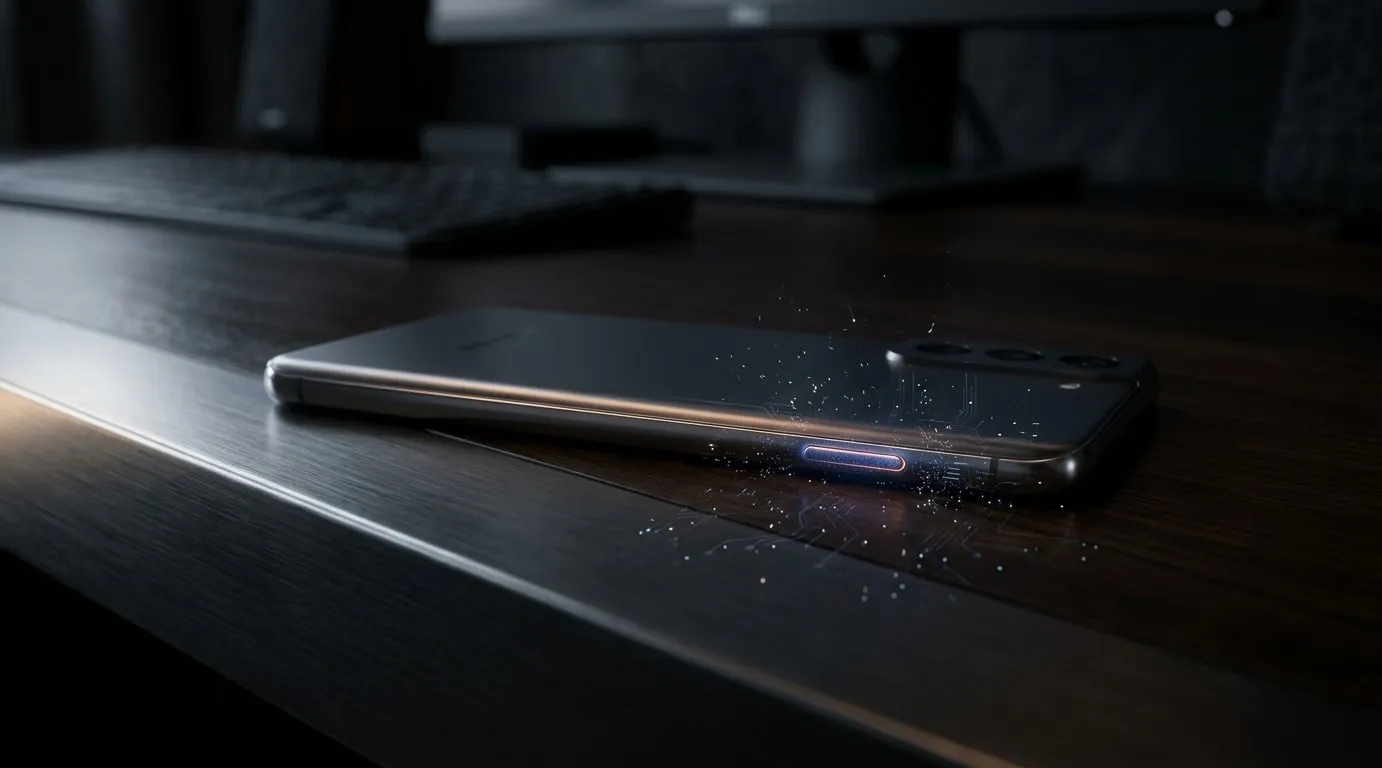
A Samsung phone that won’t turn on can be frustrating, especially when you need access to important messages, photos, or work-related information. This problem can result from a drained battery, a faulty charging cable, a software crash, or internal hardware damage. Understanding the cause can help you choose the right solution without risking further damage. Smartphone Solutions helps users understand common device problems and the importance of reliable repairs, while professional services such as game console repair El Paso and computer repair El Paso also support people experiencing technology-related issues.
If your Samsung Galaxy device has a black screen, does not respond to the power button, or fails to start after charging, there are several troubleshooting steps you can try at home. Before paying for a repair or replacing your phone, follow these practical methods to determine whether the problem is related to the battery, software, charging system, or internal components.
Table of Contents
-
Common Reasons a Samsung Phone Won’t Turn On
-
How to Fix a Samsung Phone That Won’t Turn On
-
When to Seek Professional Repair
-
Frequently Asked Questions
-
Conclusion and Call to Action
1. Common Reasons a Samsung Phone Won’t Turn On
Several issues can prevent a Samsung phone from starting properly.
-
Completely drained battery: The battery may be too depleted to power the display immediately.
-
Faulty charging accessories: A damaged cable, adapter, or electrical outlet may prevent charging.
-
Software crash: The operating system may freeze, leaving the screen black even when the phone is still powered on.
-
Damaged charging port: Dust, debris, moisture, or physical damage can interrupt the charging connection.
-
Physical or liquid damage: Drops and exposure to water can damage internal components.
-
Battery deterioration: An aging battery may no longer provide enough power to start the device.
Identifying these possibilities helps you choose the safest troubleshooting method.
2. How to Fix a Samsung Phone That Won’t Turn On
Step 1: Charge Your Phone for at Least 30 Minutes
Connect your Samsung phone to a working charger and leave it charging for approximately 30 minutes. If the battery is completely depleted, the device may need time before displaying a charging indicator.
Try another compatible cable, adapter, and wall outlet if nothing happens. Check the charging accessories for visible damage before using them.
If your phone becomes unusually hot, smells burnt, or has a swollen battery, disconnect it if safe and stop troubleshooting.
Step 2: Perform a Forced Restart
A frozen operating system can make your Samsung phone appear completely dead.
On many Samsung Galaxy models, press and hold the Side/Power button and Volume Down button together for approximately 7–20 seconds. Release the buttons if the Samsung logo appears.
This procedure generally does not erase your personal data. However, the exact button combination and timing can vary by model.
Step 3: Check for Signs of Power
Look for vibration, notification sounds, charging indicators, or other signs that the phone is running despite having a black screen.
If the device makes sounds but the display remains black, the problem could involve the screen, display connector, or another internal component rather than the battery.
Avoid pressing hard on the display or attempting to open the phone yourself.
Step 4: Inspect the Charging Port
Examine the charging port for visible debris, corrosion, or damage. Do not insert metal objects or liquids into the port.
If the phone has recently been exposed to moisture, disconnect the charger and allow the device to dry in a safe, ventilated environment. Do not use a hair dryer or apply external heat.
A damaged port may require professional cleaning or replacement.
Step 5: Consider Recent Software Problems
If your Samsung phone stopped working after a software update, the operating system may have encountered an error.
Start with a forced restart. If the phone displays the Samsung logo but cannot complete startup, professional guidance may help you determine whether a software recovery procedure is appropriate.
Avoid performing a factory reset before exploring other options because it can erase your personal data.
Step 6: Seek Professional Diagnosis
If your phone remains unresponsive after charging and restarting, it may have a failed battery, damaged charging circuit, faulty display, or motherboard problem.
A qualified technician can test the device and identify the underlying issue. If your phone contains important photos or documents, explain your data-recovery priorities before authorizing repairs.
3. When to Seek Professional Repair
Consider professional assistance if your Samsung phone has suffered a hard drop, liquid exposure, repeated charging failures, or persistent startup problems.
A technician can inspect the battery, charging port, display, and internal circuitry to determine whether repair is practical. The appropriate solution depends on the phone model, the extent of damage, and the cost of replacement parts.
Smartphone Solutions is a relevant resource for users exploring smartphone troubleshooting and repair options. People who also experience technical problems with other devices may need game console repair El Paso or computer repair El Paso, depending on the equipment affected.
4. Frequently Asked Questions
Why is my Samsung phone not turning on even after charging?
The battery may be deeply discharged, the charging accessories may be faulty, or the phone may have a hardware or software problem. Try a different compatible charger and perform a forced restart.
How do I know if my Samsung battery is completely dead?
A battery problem may be responsible if the phone repeatedly fails to charge, shuts down unexpectedly, or cannot start even with a working charger. Professional testing can help confirm the cause.
Can a Samsung phone be repaired if its screen is black?
Yes, depending on the cause. A black screen may result from a software crash, display damage, or another internal fault. A technician can diagnose the problem before recommending a repair.
Will a forced restart erase my data?
A standard forced restart generally does not erase personal data. A factory reset is different and can delete information stored on the device.
When should I replace my Samsung phone instead of repairing it?
Replacement may be worth considering when the motherboard is severely damaged, repair costs approach the price of another suitable device, or the phone is already near the end of its useful life.
5. Conclusion and Call to Action
A Samsung phone that won’t turn on does not always need to be replaced. Charging the battery, checking accessories, performing a forced restart, and inspecting the charging port can resolve some common problems. However, persistent startup failures may indicate battery, display, or internal hardware damage that requires professional diagnosis.
Smartphone Solutions can help readers explore smartphone troubleshooting and repair information, while game console repair El Paso and computer repair El Paso are relevant service searches for people facing problems with other electronic devices. If your Samsung phone remains unresponsive, seek a qualified repair technician before attempting risky repairs or resetting the device.
Need help with a device that won’t turn on? Visit Your Smartphone Solutions to explore smartphone repair information and available services. Get the problem diagnosed early to help protect your device and important data.
Related Reading
Why Lifestyle & Culture is Transforming the Global Industry Landscape
Welcome to our in-depth exploration of Lifestyle & Culture. In an era define...
Expert Insights: Navigating the Complex World of Lifestyle & Culture
Welcome to our in-depth exploration of Lifestyle & Culture. In an era define...