How to Fix a Laptop That Keeps Shutting Down When Unplugged
11 Views
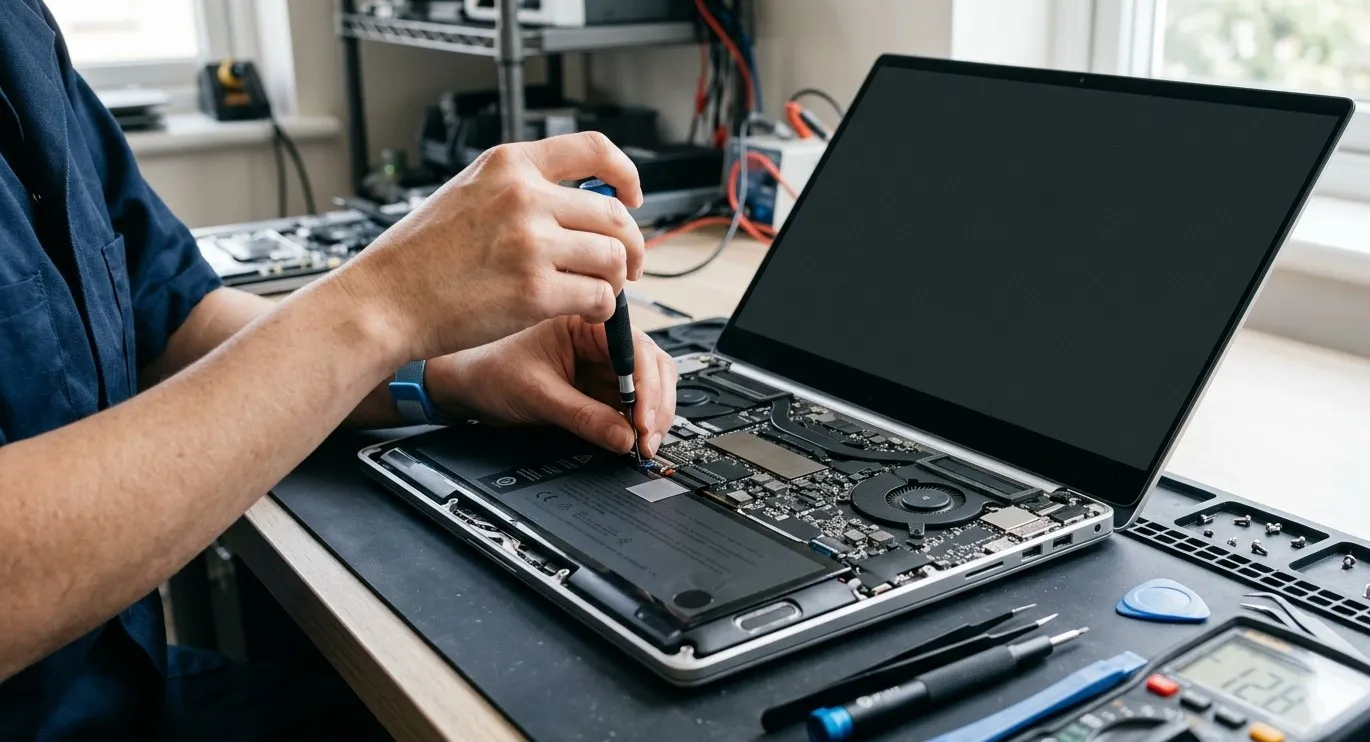
A laptop that shuts down immediately after you disconnect its charger can make working, studying, or traveling difficult. This problem often indicates a worn-out battery, a faulty power connection, or an issue with the laptop's charging system. In some cases, software settings or system errors may also contribute to unexpected shutdowns. Whether you need simple troubleshooting or professional Computer Repair Albany, virus removal Albany, or data recovery Albany services, identifying the underlying cause is essential to restoring reliable laptop performance.
Table of Contents
-
Why Your Laptop Shuts Down When Unplugged
-
Check Your Laptop Battery Health
-
Inspect the Charger and Charging Port
-
Update Battery Drivers and Windows
-
Check Power Management Settings
-
Scan for Software Problems
-
When to Seek Professional Repair
-
Frequently Asked Questions
-
Get Professional Laptop Repair Help
1. Why Your Laptop Shuts Down When Unplugged
Several issues can cause a laptop to turn off when it loses access to external power.
-
Worn-out battery: An aging battery may no longer store enough energy to keep the laptop running.
-
Faulty battery connection: A loose internal connector can prevent the battery from supplying power.
-
Charging problems: A damaged adapter or charging port may prevent the battery from recharging properly.
-
Battery reporting errors: Outdated drivers or system issues may cause Windows to display inaccurate battery information.
-
Hardware faults: Problems with the charging circuit or motherboard may interrupt power delivery.
If your laptop works normally while plugged in but shuts down immediately when disconnected, start by checking battery health.
2. Check Your Laptop Battery Health
Battery health diagnostics can help determine whether your battery has deteriorated.
On Windows, you can generate a battery report:
-
Open the Start menu and search for Command Prompt.
-
Select Run as administrator.
-
Enter
powercfg /batteryreportand press Enter. -
Open the report using the file path displayed in the results.
-
Compare the battery's design capacity with its current full-charge capacity.
A significantly reduced full-charge capacity may indicate battery wear. You can also check your laptop manufacturer's diagnostic utility for battery warnings.
If the battery is no longer holding a charge, replacing it with a compatible, high-quality component may be necessary.
3. Inspect the Charger and Charging Port
A laptop may appear to charge while receiving insufficient or inconsistent power.
Inspect the adapter and cable for visible damage. Try another compatible charger that meets the manufacturer's power specifications, if available. Also, check whether the charging indicator behaves normally when the adapter is connected.
A loose or damaged charging port can prevent the battery from receiving power. If the connection repeatedly drops or works only when the cable is positioned a certain way, avoid forcing it and arrange a professional inspection.
4. Update Battery Drivers and Windows
Software-related battery reporting issues can sometimes contribute to incorrect charging information.
On Windows:
-
Right-click the Start button and open Device Manager.
-
Expand the Batteries category.
-
Review the listed battery devices for errors.
-
Check Windows Update for relevant updates.
-
Restart your laptop and test it again.
If necessary, consult your laptop manufacturer's support resources for model-specific battery diagnostics and driver recommendations.
Remember that updating drivers cannot restore a physically worn-out battery.
5. Check Power Management Settings
Incorrect power settings can contribute to unexpected shutdowns, sleep behavior, or reduced battery runtime.
Open Settings > System > Power & battery and review the available power mode and battery settings. Check whether the laptop is configured to sleep or shut down under particular conditions.
If your laptop turns off instantly rather than entering sleep mode, however, a depleted battery or hardware fault is more likely than an ordinary power setting.
6. Scan for Software Problems
Operating system errors or problematic applications can sometimes cause shutdowns, although immediate shutdowns when unplugging usually point toward a battery or power issue.
Install appropriate Windows updates and review recent software changes. If you notice suspicious pop-ups, unfamiliar programs, or unusual system activity, run a reputable security scan. Professional virus removal Albany services can help investigate persistent malware-related problems.
If unexpected shutdowns put important files at risk, back up your data whenever the laptop remains stable on external power. If the storage drive is failing or files become inaccessible, professional data recovery Albany assistance may help recover important information.
7. When to Seek Professional Repair
If your laptop continues shutting down when unplugged, a technician can test battery capacity, inspect internal connections, and evaluate the charging circuit.
Professional Computer Repair Albany services can help identify whether the battery needs replacement or whether a more complex hardware issue is responsible.
Safety warning: If the battery is swollen, leaking, unusually hot, or producing an unusual odor, stop using the laptop and disconnect the charger if it is safe to do so. Do not press or puncture the battery. Arrange professional service promptly.
Frequently Asked Questions
Why does my laptop shut down immediately when I unplug the charger?
The battery may be completely worn out, disconnected internally, or unable to deliver sufficient power. A charging system fault may also be responsible.
Can I use my laptop without a battery?
Some laptops can operate using a compatible power adapter without a battery, but this depends on the model. Sudden power interruptions may cause data loss, so this is not an ideal long-term solution.
Will updating Windows fix the problem?
Updates may resolve certain software-related issues, but they will not repair a damaged battery or faulty charging port.
How do I know if my laptop battery needs replacement?
Warning signs include extremely short battery life, sudden shutdowns, charging failures, and diagnostic reports showing significantly reduced capacity.
Get Your Laptop Working Reliably Again
A laptop that shuts down when unplugged often needs battery testing or charging system diagnostics. Checking battery health, inspecting the adapter, and reviewing software settings can help identify the cause. If the problem continues, trusted Computer Repair Albany, virus removal Albany, and data recovery Albany professionals can help diagnose related issues and protect your important files.
Related Reading
Why Lifestyle & Culture is Transforming the Global Industry Landscape
Welcome to our in-depth exploration of Lifestyle & Culture. In an era define...
Expert Insights: Navigating the Complex World of Lifestyle & Culture
Welcome to our in-depth exploration of Lifestyle & Culture. In an era define...