From Spreadsheet Rows to Presentable Charts: A Practical Workflow
36 Views
A chart exists to make a number obvious at a glance. When a reader needs thirty seconds to work out what a line is telling them, the chart has failed — and the fault usually sits in the production step, not in the data. The workflow below starts from a table you already have and ends with a downloadable image, with no design tool in the loop.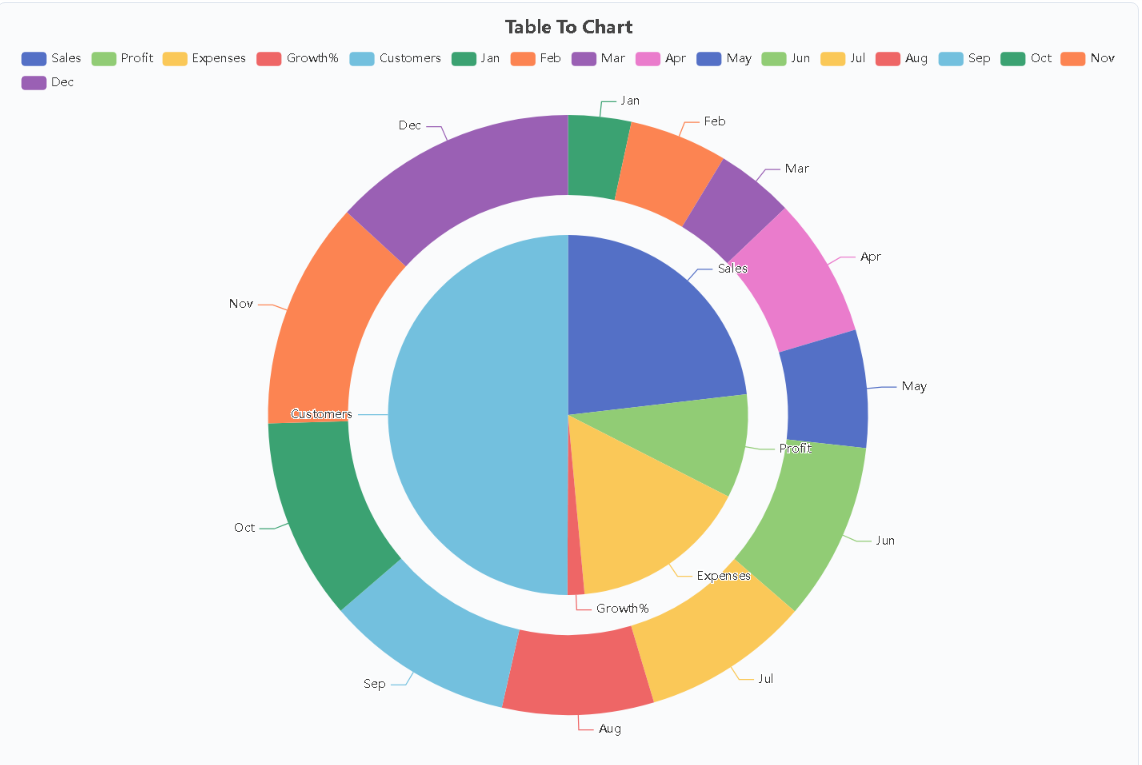
Where default tooling loses the plot
Spreadsheet chart engines are optimised for being available, not for being readable. Auto-scaled axes shave off the meaningful differences between the tallest bars; a single default palette paints every series the same blue; gridlines crowd out the numbers they were meant to frame. The reader then has to rebuild the analysis the chart was supposed to hand over. Two adjustments close most of the gap: set the value axis to a baseline that reflects the real question instead of a rounded minimum, and label each series next to its line or bar rather than in a legend the reader must cross-reference against a table.
Choose the chart from the question, not the data
The same six-column sheet can justify a column chart, a line chart, or a dual-axis muddle. What decides it is the question being asked, not the shape of the table. Change over time belongs on a line. A comparison between categories belongs on a bar, sorted by value rather than alphabetically. A share of a fixed whole belongs on a pie or donut, and only while the slice count stays low; past roughly five slices, a stacked bar communicates the same proportions without forcing the eye to compare angles.
Three worked cases. Monthly active users across twelve months: a line, because the interesting information is the direction between points. Support tickets by department for a single quarter: a bar chart, sorted, because nothing about the story is temporal. Revenue share across four product lines: a pie, because the four slices do add up to the whole and the point is composition.
The editing loop that eats an afternoon
The familiar failure pattern looks like this. Build a chart in the spreadsheet, screenshot it into a deck, notice a label is clipped, fix the label, take a new screenshot, notice the colour no longer matches the deck theme, and repeat. Every pass is manual, and nothing about the second attempt is faster than the first. Two habits break the loop. First, keep the numbers in one place and regenerate the chart instead of patching the image. Second, export at a resolution that survives being scaled up, because a screenshot that looked fine at 60 percent is visibly soft on a projector.
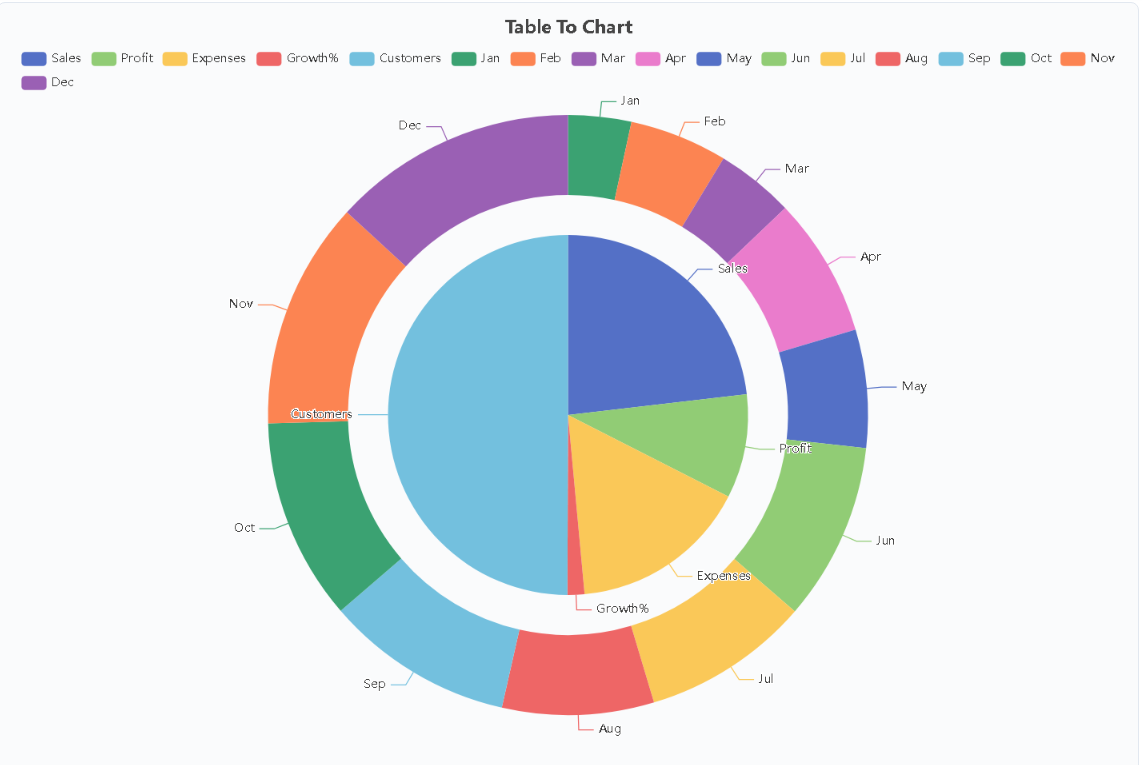
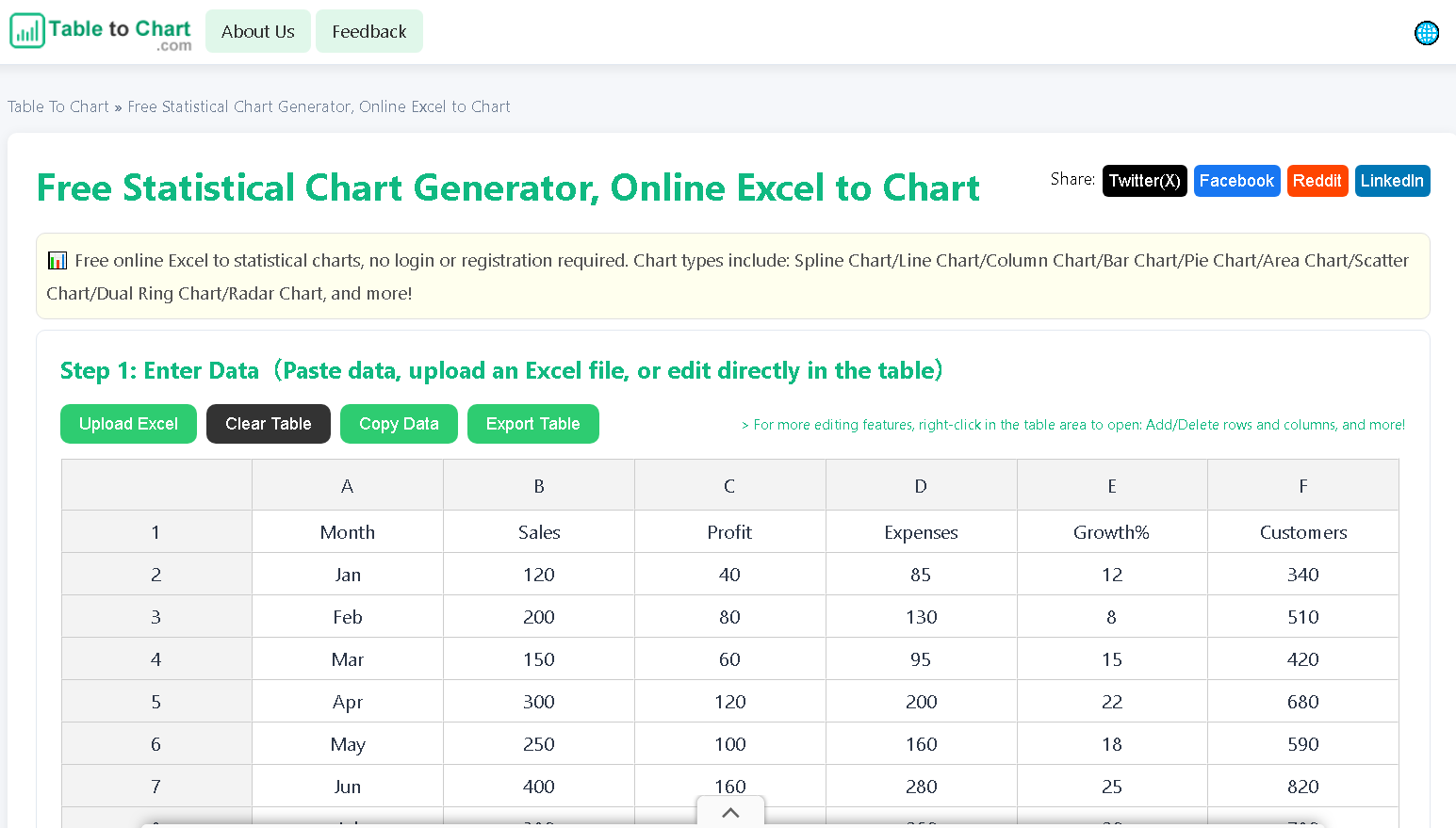
A browser-based path shortens that considerably. Paste rows copied from Excel or a CSV file, or drop in a spreadsheet file, and a generator such as Table To Chart reads the table structure, renders one of eleven chart types — spline, line, column, bar, pie, area, scatter, dual ring, radar, heatmap, funnel — and returns a high-resolution image ready for a slide or a report, all from a single page with no editing layer in between.
One-off charts should not require an account
Signing up is a strange trade for a task performed twice a quarter. An account means one more password, one more inbox that receives product announcements, and a data-usage policy to read before pasting in figures that may be internal. For occasional charting, the registration wall costs more attention than it returns. A tool that runs entirely in the browser sidesteps the question: the table is processed on the machine it was typed on, and the tab closing is the end of the data's life.
A five-minute checklist
Clean the table first: one header row, no merged cells, numbers stored as numbers. Pick the chart type from the question you are answering. Check that the axis baseline tells the truth. Replace the legend with direct labels. Export at print resolution and insert the file rather than a screenshot. Finally, read the finished chart against the source numbers once, because a mistyped range is the one error a good-looking chart will happily hide.