How to Change Default Folder For Attachments in Outlook?
By lucifertech
2 Views
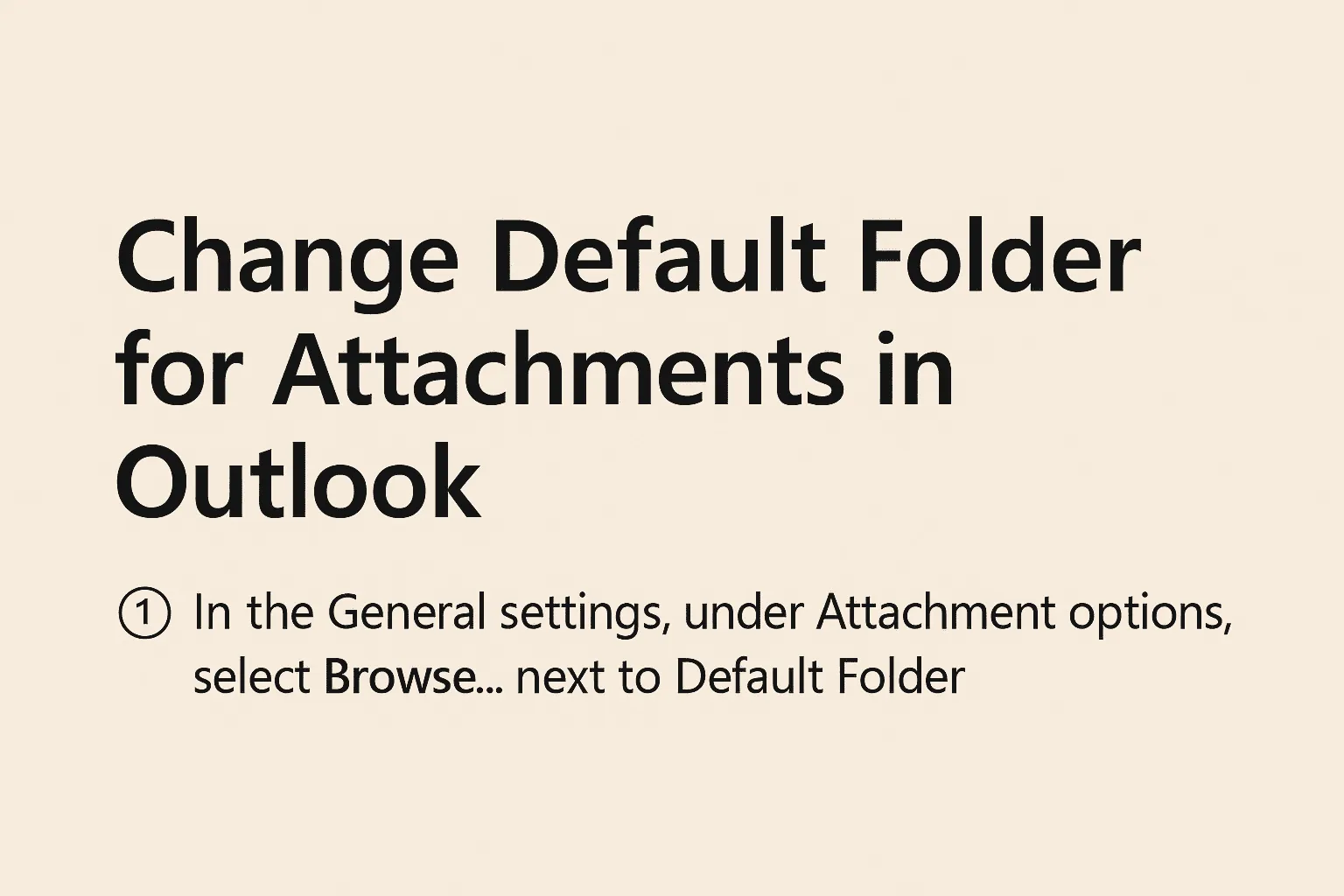
Summary: Microsoft Outlook is a popular email client used by professionals and individuals worldwide. It offers a robust environment for managing emails, calendars, tasks, and attachments. However, one common pain point users face is the default folder location for attachments.
By default, Outlook saves attachments to the Downloads folder on your system. While convenient for some, it may not suit users who prefer a different location for organizing their work-related files, secure storage, or simply easy access. This guide explains how to change the default folder for saving attachments in Outlook, along with its limitations and workarounds.
Also Read: How to Archive Attachments in Outlook?
Why Change the Default Attachment Folder in Outlook?
There are several valid reasons for changing the default location where Outlook saves attachments:
1. Better File Organization
Saving files directly to a specific project or client folder helps in maintaining better organization and faster access to documents.
2. Increased Productivity
Reducing the need to manually move files from the Downloads folder every time improves workflow efficiency.
3. Security and Backup
Downloads folder is not the most secure or easily backed up location. Redirecting attachments to a secure directory or cloud sync folder like OneDrive helps in ensuring data safety.
4. Avoid Clutter
Over time, the Downloads folder can become messy and unmanageable. Custom folders keep things cleaner.
Manual Methods to Change Default Attachment Folder in Outlook
Outlook doesn’t provide a direct option in its UI to change the default save folder. However, with a little change in the Windows Registry for Windows OS, users can modify the save location.
Remember: Modifying the registry can cause serious problems if not done correctly. Always back up the registry before making changes.
Method 1. Use Windows Registry Editor (For Outlook Desktop App)
Supported Versions: Outlook 2013, 2016, 2019, and Outlook for Microsoft 365
Steps:
- Close Outlook completely.
- Open Registry Editor:
- Press Win + R, type regedit, and press Enter.
- Navigate to the following path:
pgsql
HKEY_CURRENT_USER\Software\Microsoft\Office\<version>\Outlook\Options
- Replace <version> with your Outlook version:
Outlook 2013 – 15.0
Outlook 2016 – 16.0
Outlook 2019 / Microsoft 365 – 16.0
- Right click on the Options folder > New > String Value.
- Name the new value: DefaultPath
- Double-click the newly created DefaultPath key and enter the full path of the folder you want Outlook to use for saving attachments (e.g., D:\Work\Email Attachments).
- Click OK and close Registry Editor.
- Reopen Outlook and test by trying to save an attachment. It should now default to your new location.
Method 2. Use VBA Script to Save Attachments to Custom Folder
If you frequently receive attachments and want to automate saving them to a specific folder, you can use a VBA macro.
Sample VBA Script:
Sub SaveAttachmentsToFolder()
Dim objMail As Outlook.MailItem
Dim objAttachment As Outlook.Attachment
Dim saveFolder As String
saveFolder = "D:\Work\Email Attachments"
If Application.ActiveExplorer.Selection.Count > 0 Then
Set objMail = Application.ActiveExplorer.Selection.Item(1)
For Each objAttachment In objMail.Attachments
objAttachment.SaveAsFile saveFolder & "\" & objAttachment.FileName
Next
MsgBox "Attachments saved to: " & saveFolder
End If
End Sub
To use:
Press Alt + F11 > Insert > Module > Paste code > Run the script.
Professional Solution to Change Default Folder for Attachments
If you want an easy and reliable way to save Outlook attachments to your desired folder, the SysTools Outlook Attachment Extractor software is a perfect choice. It lets you automatically extract attachments from multiple Outlook emails and save them to any location on your system.
You don’t need to change any registry settings or use complicated scripts. This tool supports PST, OST, and BAK files and offers advanced filters like date range, file type, and folder selection. It’s ideal for both personal and business use.
Key Benefits:
- Save attachments in bulk from multiple emails.
- Choose any folder to save the files.
- Apply filters to extract only the attachments you need.
- Works with Outlook 2019, 2016, 2013, and earlier versions.
- No technical skills required.
Conclusion
Outlook users can benefit greatly by changing the default save folder for attachments especially in professional settings where file management is crucial. While Outlook doesn’t provide a native GUI setting for this, users can use the Windows Registry Editor or automate with VBA to customize their workflow. However, always take caution when modifying registry settings and consider creating regular backups.
Pro Tip: For advanced users who frequently handle multiple attachments, consider using a professional tool mentioned above.