QuickBooks Error Opening Company File After Restore
By Mark John
33 Views
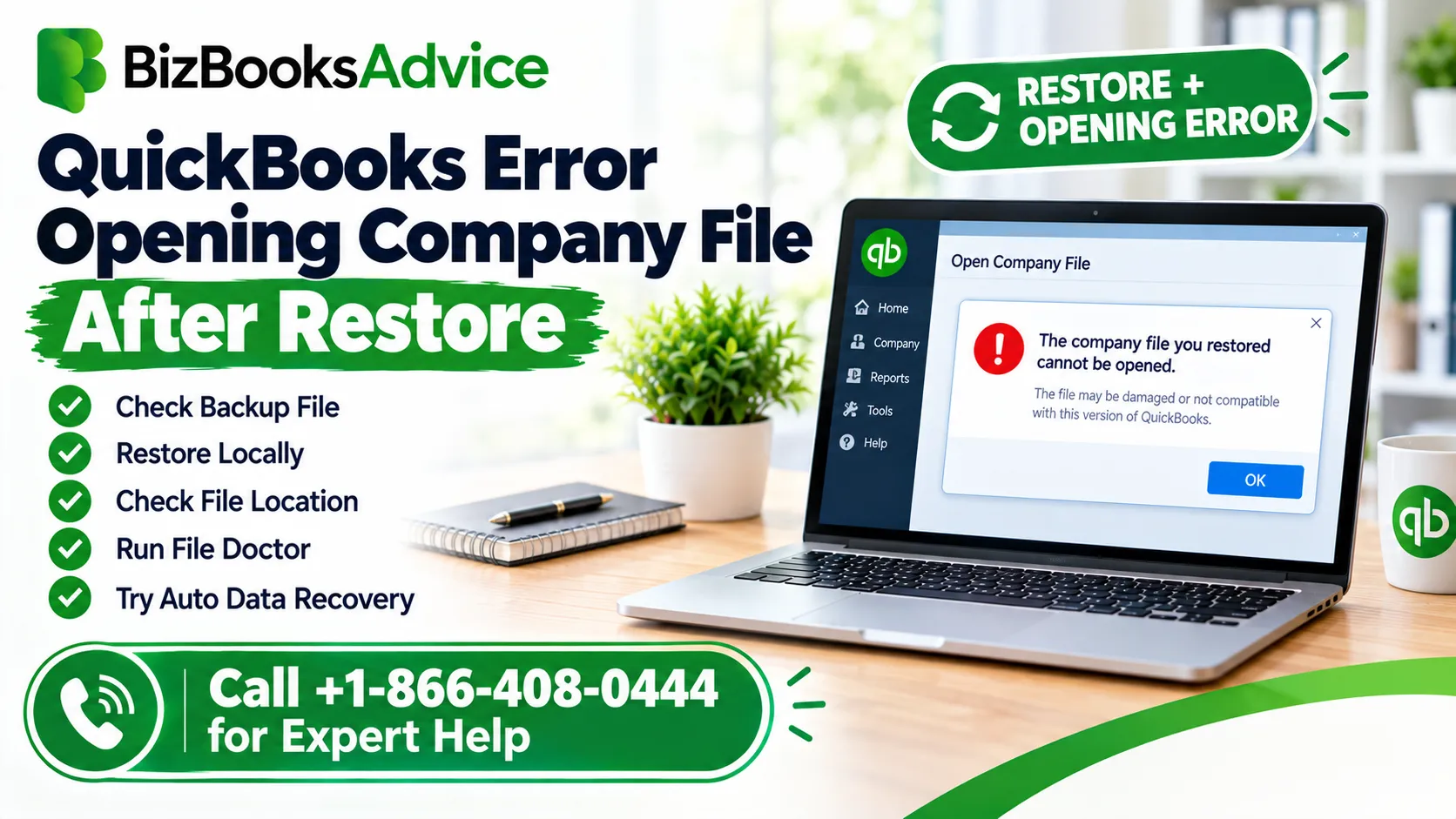
An error that appears right after restoring a QuickBooks backup usually comes from one of a few sources: the restore was interrupted or restored to a location with a problem, the backup file itself was incomplete or older than expected, permissions or ownership on the restored file don't match your current user, or the restored file needs to be relinked before QuickBooks will recognize it properly. This is different from a backup that fails to restore at all, since here the restore appears to complete, but opening the resulting file produces an error. The steps below work through the likely causes in order.
What You Might Be Seeing
- The restore finishes, but opening the file gives an error immediately. Permissions, ownership, or an incomplete restore.
- "Company file not found" appears even though you just restored it. The restored file needs to be opened from its new location manually.
- An error mentions data integrity or damage. The backup itself may have been made from a damaged file.
- The file opens but data looks old or incomplete. You restored an older backup than intended.
- The restore process itself showed an error before finishing. The backup file may be corrupted or was interrupted while restoring.
Note which of these matches your situation, since it determines whether the fix is about access, the backup's age, or the backup's integrity.
Common causes after a restore
- The restored file's saved path doesn't match where you're looking for it. QuickBooks needs to be pointed to the new location directly.
- Ownership or permissions carried over incorrectly. A restored file can retain Windows ownership tied to a different account or computer.
- The restore didn't fully complete. An interrupted restore, closed window, or drive issue during the process can leave a partial file.
- The backup itself was already damaged. If Verify Data wasn't run before the backup was made, existing damage carries into the restored copy.
- You restored the wrong backup, or an older one than expected. Multiple similarly named backups can make it easy to pick the wrong file.
- The destination drive had insufficient space or write access. A restore to a nearly full or restricted drive can fail partway without a clear warning.
- Antivirus interfered during the restore. Security software can lock or flag files mid-process.
Step-by-step fixes
Fix 1: Confirm which backup you actually restored
Before troubleshooting the error, make sure you restored the intended file.
- Check the file name and date of the .qbb backup you used. Backups are often named with a date and time stamp.
- Confirm this matches when you expected the backup to have been made, not an older file with a similar name.
- If it looks wrong, locate the correct backup and restore that one instead.
Fix 2: Open the restored file directly, rather than relying on a shortcut
If the error is "company file not found" or similar, right after restoring, QuickBooks may simply need to be pointed at the new file location.
- In QuickBooks, go to File → Open or Restore Company.
- Choose Open a company file and click Next.
- Browse directly to the folder where you saved the restored file, and select it.
- Click Open.
This often resolves the issue immediately, since the restore process sometimes doesn't automatically update QuickBooks's saved path the way opening the file manually does.
Fix 3: Check the restored file's permissions and ownership
A restored file can carry ownership settings from a different computer or user account.
- Right-click the restored .qbw file and choose Properties → Security → Advanced.
- Check the Owner field. If it shows a different or unfamiliar account, click Change, type your current Windows username, and click Check Names, then OK.
- Confirm your account has Full control or at least Modify permissions under the Security tab.
- Try opening the file again.
Fix 4: Confirm the destination drive had enough space
- Check how much free space was on the drive you restored to at the time of the restore.
- If it was nearly full, the restore may have written an incomplete file without a clear error.
- Free up space, delete the incomplete restored file, and restore the backup again to a location with adequate room.
Fix 5: Restore again, to a fresh, simple location
Ruling out a bad restore is often faster than diagnosing exactly what went wrong.
- Choose a simple local folder, such as your Desktop, for this attempt.
- Go to File → Open or Restore Company → Restore a backup copy → Local backup.
- Select the .qbb file and restore it to the new folder, using a clear, distinct file name so you don't confuse it with the earlier attempt.
- Open the newly restored file directly.
If this second restore opens without error, the first attempt was likely interrupted or affected by something specific to that original destination.
Fix 6: Run Verify Data on the restored file
Once the file opens, don't assume it's automatically clean, especially if the original backup may have been made from a file with existing damage.
- Go to File → Utilities → Verify Data.
- If it reports lost integrity, follow our guide on QuickBooks company file damaged or corrupted for the rebuild steps.
- If it comes back clean, you're in good shape to continue using this file.
Fix 7: Check antivirus involvement during the restore
- Open your antivirus's protection history or quarantine list and check for anything flagged around the time of the restore.
- If a file was quarantined or blocked, restore it from quarantine if possible, or re-run the restore with protection paused temporarily.
- Add the destination folder to your antivirus exclusions and turn protection back on.
Fix 8: Try restoring an older backup if the most recent one is affected
If the most recent backup consistently produces this error, it may be affected by whatever caused the original problem.
- Locate an earlier .qbb backup, ideally one made before any issues began.
- Restore that one to a fresh location instead.
- Confirm it opens and passes Verify Data.
- If successful, you'll need to manually re-enter any transactions made between that backup and now.
Fix 9: Repair the QuickBooks installation
If restores consistently produce errors regardless of which backup you use, the installation itself may be the problem rather than any individual file.
- Open Settings → Apps → Installed apps.
- Find QuickBooks, select the three-dot menu and choose Repair.
- Restart and try restoring again.
Quick decision guide
- "File not found" right after restoring: open it manually through File → Open or Restore Company (Fix 2).
- Access or permission error: check ownership on the restored file (Fix 3).
- Data looks old or wrong: confirm you restored the intended backup (Fix 1).
- Error mentions damage or integrity: run Verify Data and follow the damage-repair steps (Fix 6).
- Happens with every backup you try: the installation likely needs a repair (Fix 9).
Restoring more reliably next time
- Restore to a folder with confirmed free space, and avoid restoring to a nearly full drive.
- Use clear, dated backup file names, so you can quickly confirm you're restoring the right one.
- Open the file manually after restoring, rather than assuming QuickBooks will find it automatically.
- Keep more than one recent backup, so a single damaged or incomplete backup isn't your only option.
- Run Verify Data periodically on your working file, so the backups it produces are less likely to carry existing damage.
When to get professional help
Consider getting help if multiple backups produce the same error, you're not confident changing ownership or permissions, or the only backups available are older than you'd like to rely on. A QuickBooks professional can check the backup files, the restore process and the resulting company file together. You can reach BizBooksAdvice at +1-866-408-0444.
Frequently asked questions
Why does QuickBooks say company file not found right after I restored it?
The restore often completes without QuickBooks automatically updating its saved file path. Open the restored file manually through File → Open or Restore Company to fix this.
Does a restore error mean my backup is bad?
Not always. It can also point to permissions, ownership, insufficient disk space, or the restore having been interrupted. Try restoring again to a fresh, simple location before assuming the backup itself is at fault.
Should I run Verify Data after every restore?
Yes, especially if you're not certain the original file was healthy when the backup was made. It confirms the restored file is clean before you rely on it.
Can I restore an older backup if the newest one keeps failing?
Yes. It's a reasonable fallback, though you'll likely need to manually re-enter transactions made after that older backup was created.
Is it safe to restore to the same location as the original file?
It's safer to restore to a new location first and confirm the file opens correctly before replacing anything, so you don't risk losing your only working copy if the restore has a problem.
Related Reading
Top 10 Hidden Secrets About Business & Finance You Need to Know
Welcome to our in-depth exploration of Business & Finance. In an era defined...
Why Business & Finance is Transforming the Global Industry Landscape
Welcome to our in-depth exploration of Business & Finance. In an era defined...